
How to create new users in Higher
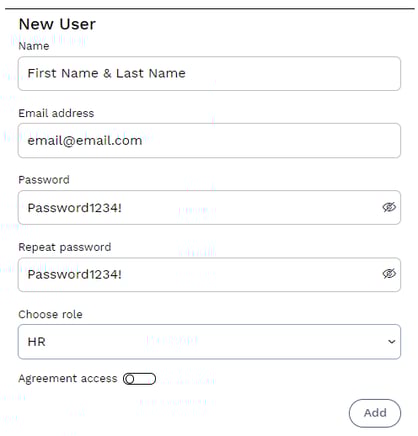
To create new users, you need to go to Overview > Settings > Create new user & branch

Then, fill in the details on the right side of the page.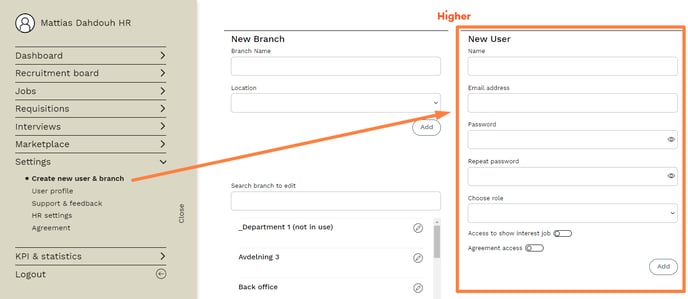
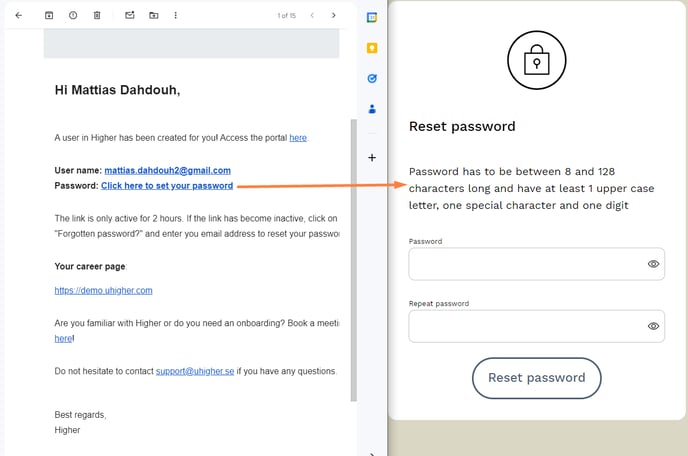
When creating new users, you assign them a password, but when an email is sent to the user, they will be asked to set their own password instead. Below is an example of how the email looks.
There are currently 3 levels of access you can choose from:
- Recruiter
- Regional Manager
- HR
Recruiter
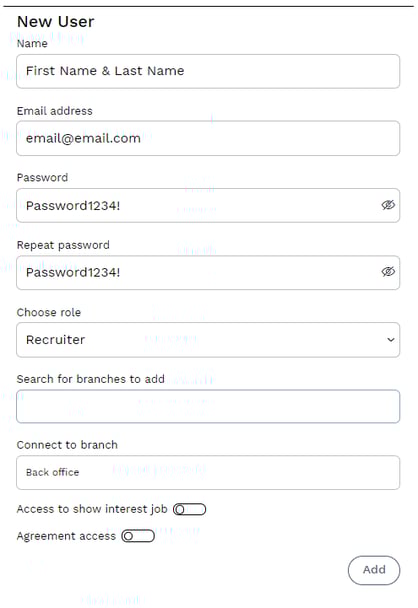
❗ A Recruiter must be connected to a branch in order to be created.
Regional Manager
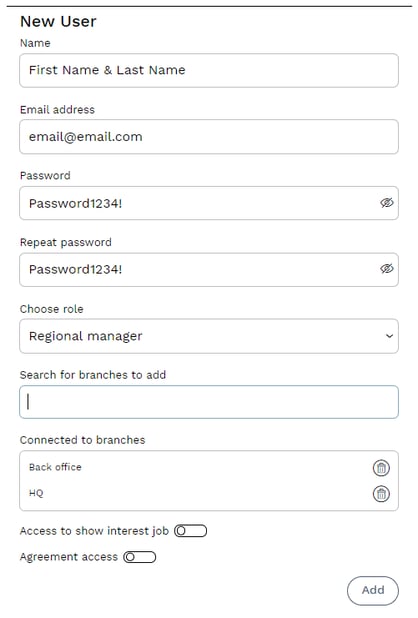
❗ Must be connected to AT LEAST one branch in order to be created. A Regional Manager can be connected to multiple branches if needed.
HR
❗ An HR-user has full access to everything in Higher, so they don’t need to be assigned to a specific branch. The main user set up for new customers always has HR access.
ACCESS LEVELS
| Recruiter | Regional Manager | HR |
|---|---|---|
| Dashboard | Dashboard | Dashboard |
| Recruitment Board | Recruitment Board | Recruitment Board |
| Can only be linked to one branch | Can be linked to multiple branches | Does not need to be linked to units |
| Can only see jobs linked to the previously selected branch | Can only see jobs linked to the previously selected branches | Can see all jobs |
| Create jobs from templates | Create jobs from templates | Create jobs from templates |
| Create personal SMS and email templates | Create personal SMS and email templates | Create personal SMS and email templates |
| Ability to manage unsolicited applications/show interest button | Ability to manage unsolicited applications/show interest button | Ability to manage and edit unsolicited applications/show interest button |
| KPIs and statistics for jobs linked to their unit | KPIs and statistics for jobs linked to their units | KPIs and statistics for all jobs |
| Create job templates | Create job templates | |
| Create jobs from scratch | Create jobs from scratch | |
| Create company templates for SMS and email | ||
| Access to HR settings | ||
| Can create branches and users | ||
| Can bind jobs |