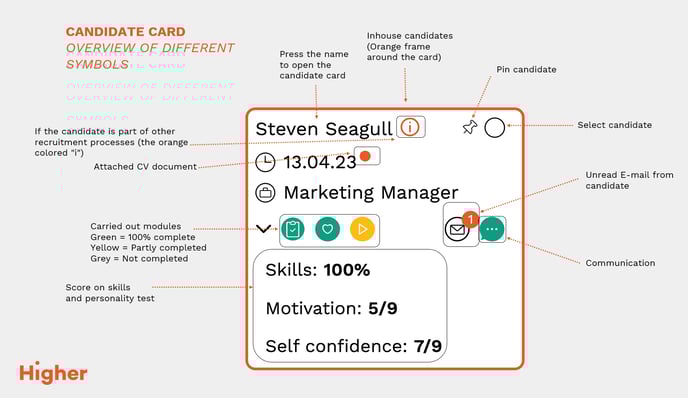
In this article, we take a closer look at what the candidate card looks like and what information you see.
Candidate card
Expanded view
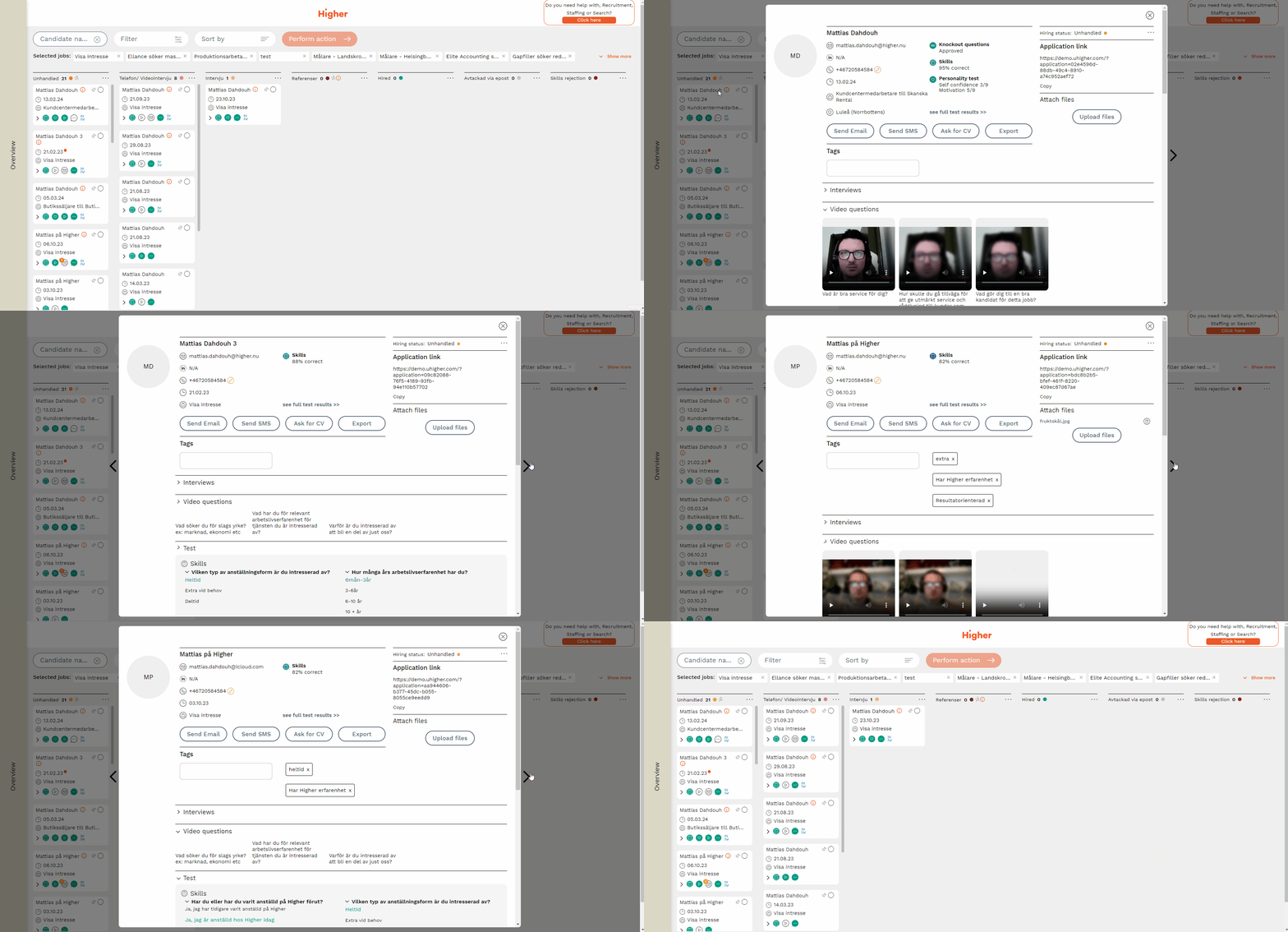
By clicking on a candidate card, you expand the view so that you can see the details of an application. You can also scroll through the cards in the current column by clicking on the arrows.
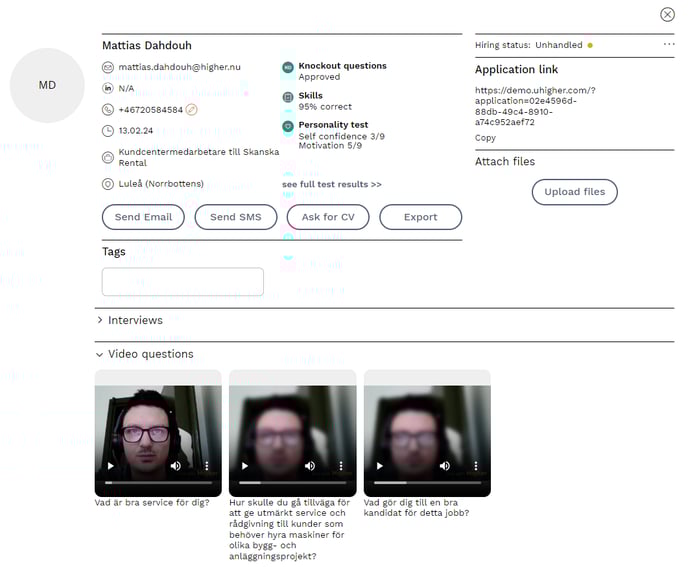
Above is an example of what it looks like when you have clicked on the candidate card. The information you see is
- Contact details
- Employment status
- Candidate's unique application link
- Attached files
- Tags (from response options or manual tags)
- Video answers
- Test results
- Comments on the application
- Previous applications
- Email communication
- SMS communication
- Export to TIL-Tid (if you have connection)
- Export to RefApp (if you have a connection)
Contact Information
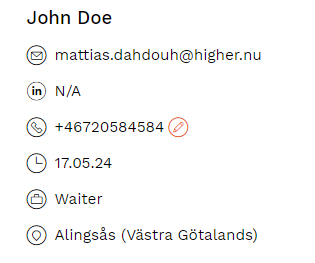
Here you can see when and which job the candidate applied for, as well as their provided contact details.
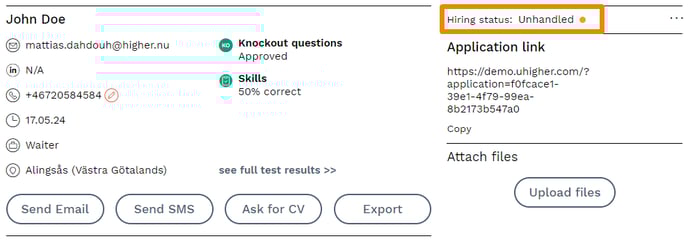
Hiring Status
Here you can see the current hiring status.
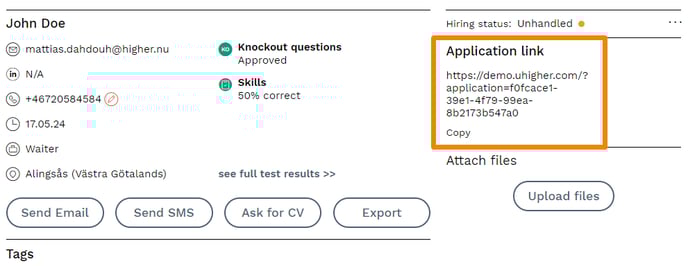
Unique Application Link
You can copy and send this link to the candidate if they are unable to find their application.
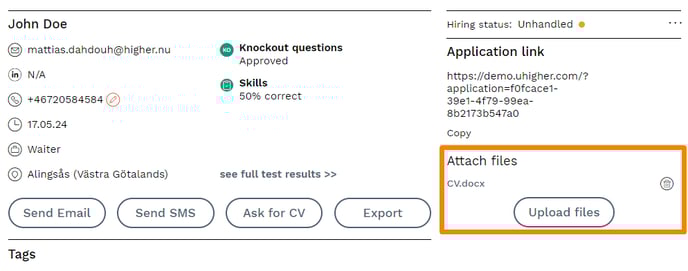
Attach Files
If the candidate has attached files, they will appear in a list on the candidate card. Remove attached files by clicking on the trash icon. You can upload files manually by pressing "upload files."
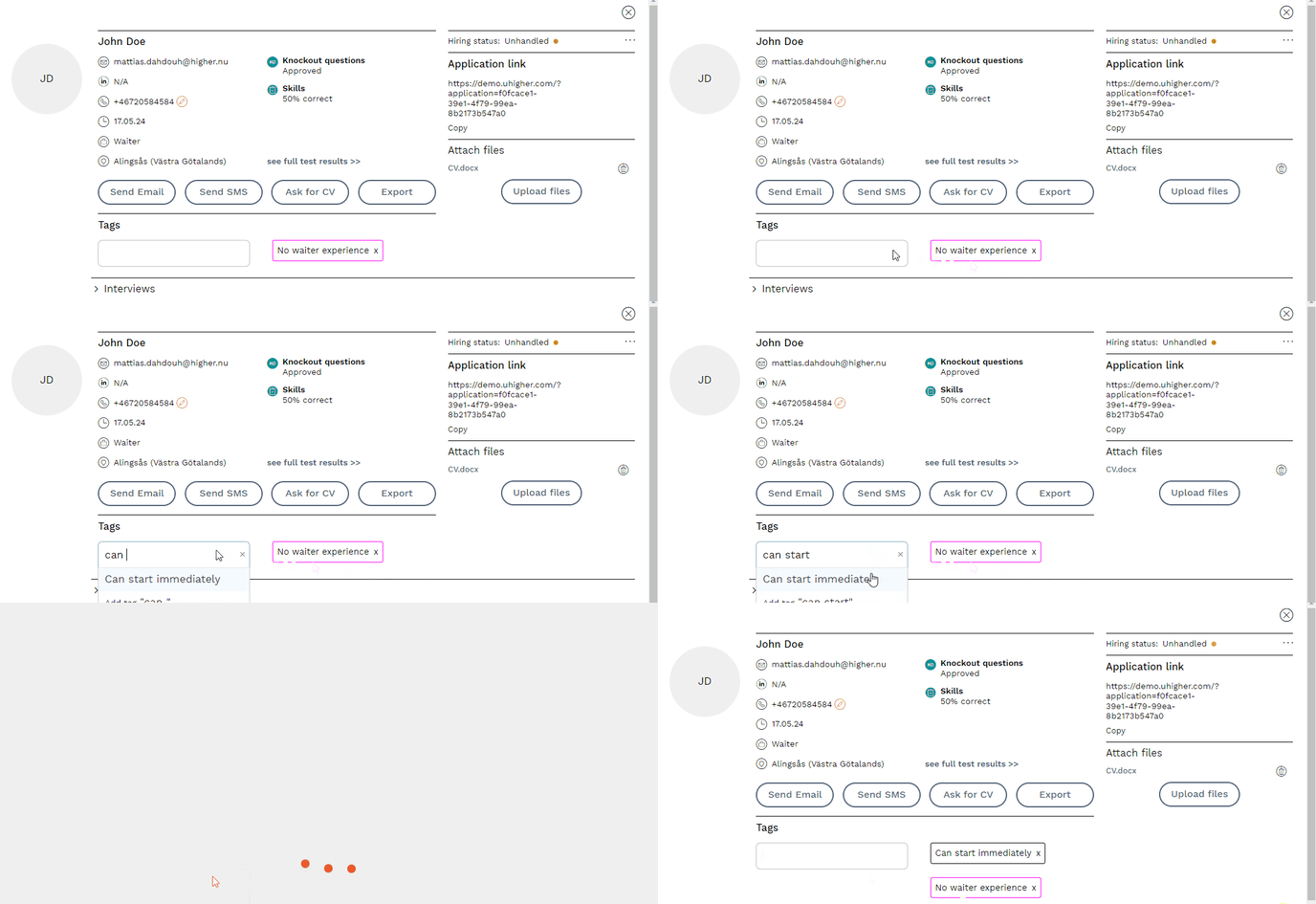
Tags
Tags from answer options (colored pink) are collected here, along with any tags you add manually (colored black).
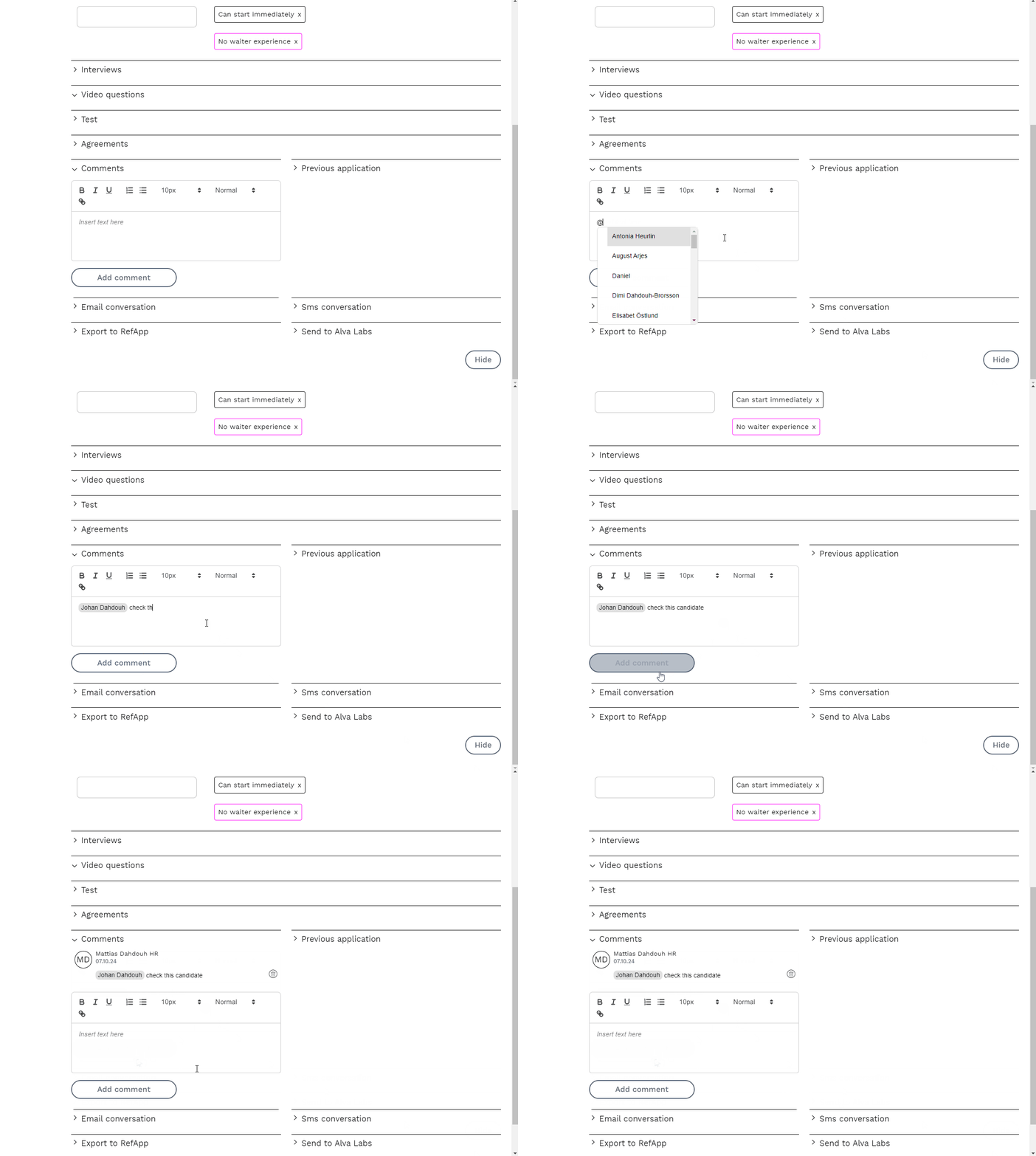
Comments
Comments added to the candidate cards are only visible to those with permission to view the job. You can tag your colleagues by writing @name. The tag will appear as a notification on the colleague’s dashboard.
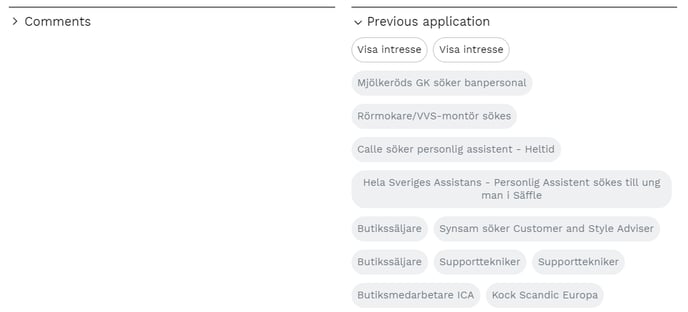
Previous Applications
In this tab, you can see if the candidate is part of any ongoing or previous applications you’ve posted. Gray titles indicate that the job has been archived and closed. Other titles are active postings, where the color indicates the hiring status of the candidate.
Email Communication
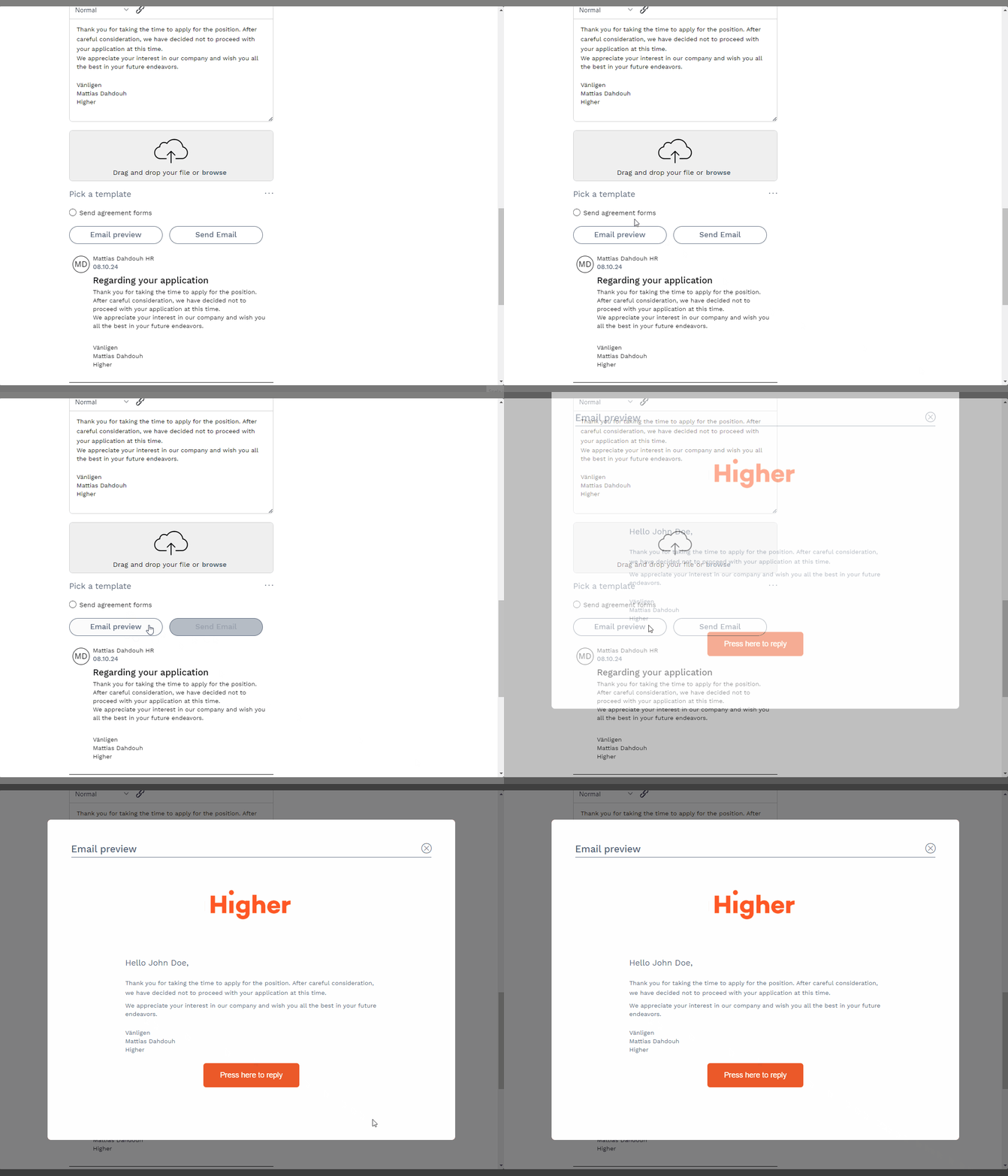
Here you can see the communication between you and the candidate. You can use email templates to streamline your communication, attach files, and write fully customized emails to candidates. Any responses from the recipient are collected in an email thread on the candidate card.
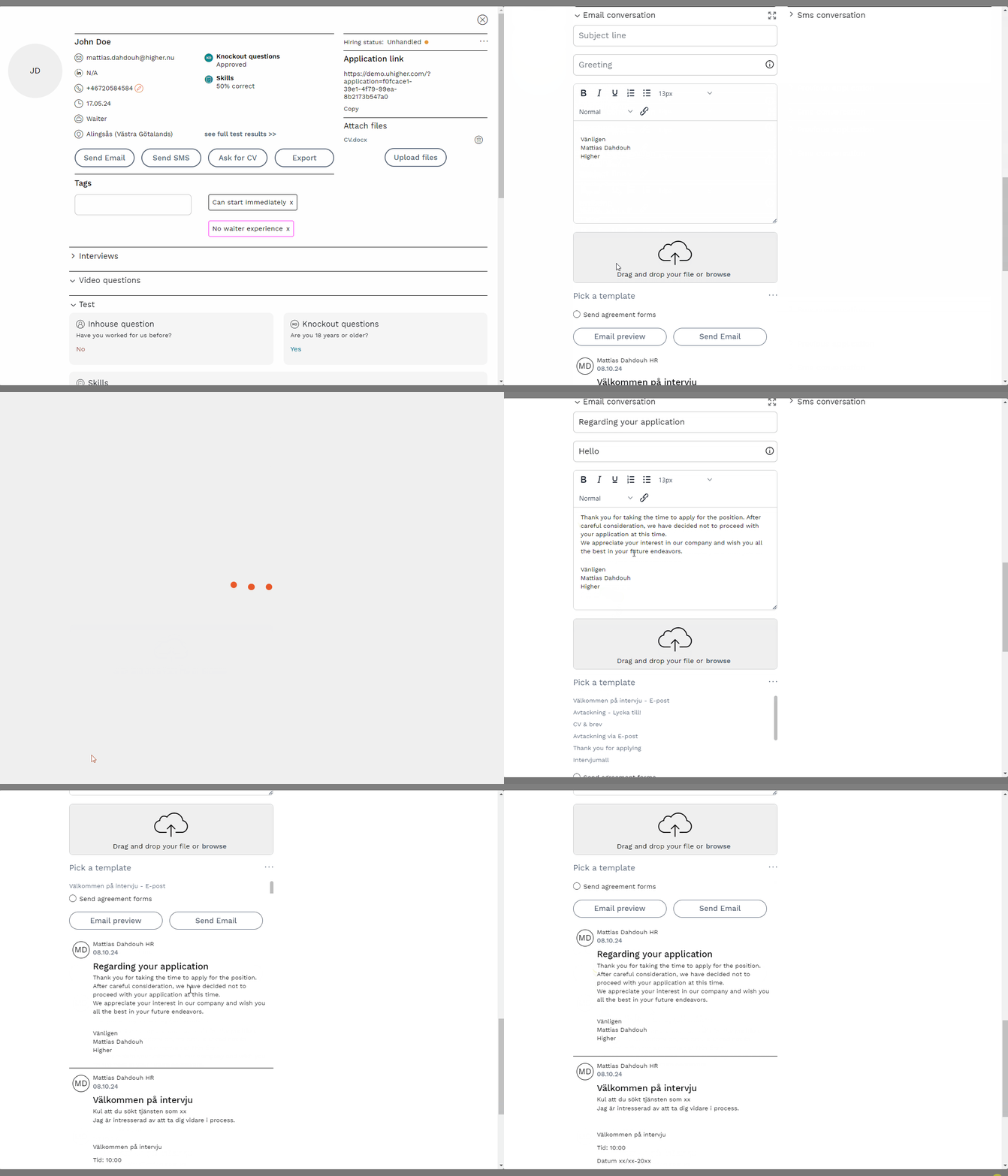
Email Preview
If you want to preview the email to see how it looks for the candidate, click "Preview E-mail".
SMS Communication
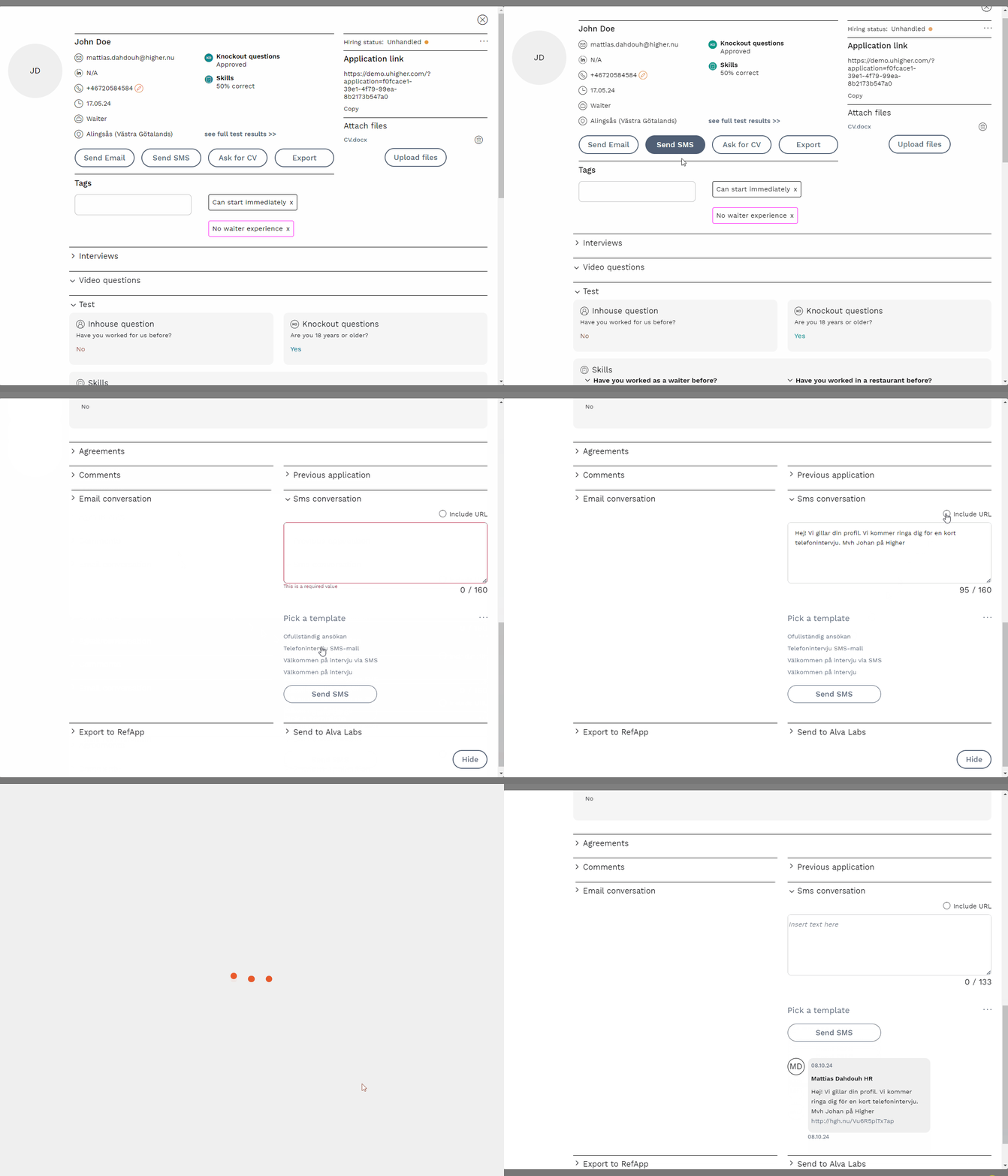
In this tab, you can view all SMS messages sent to the candidate from your system. Candidates cannot respond to these SMS messages, as they are sent through the system. The sender name will be your company name (maximum 11 characters due to SMS protocol limitations), and each SMS costs 0.55 SEK.
You can choose to write unique SMS messages, use templates, and decide whether or not to include the candidate's application link.
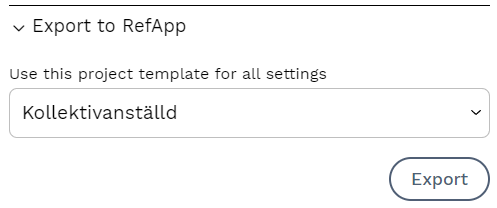
Export to RefApp
If you are a RefApp customer, you can export candidate data here.