In this article we will have a look at creating a way for candidates to express interest for your company in case you're not actively recruiting.
4. CV-module
5. Tags
Unsolicited applications / Express interest
Here you can activate unsolicited applications that are always available to apply
without an end date. A button, whose name you decide, will then
appear on the career page and allows candidates to express their interest in addition
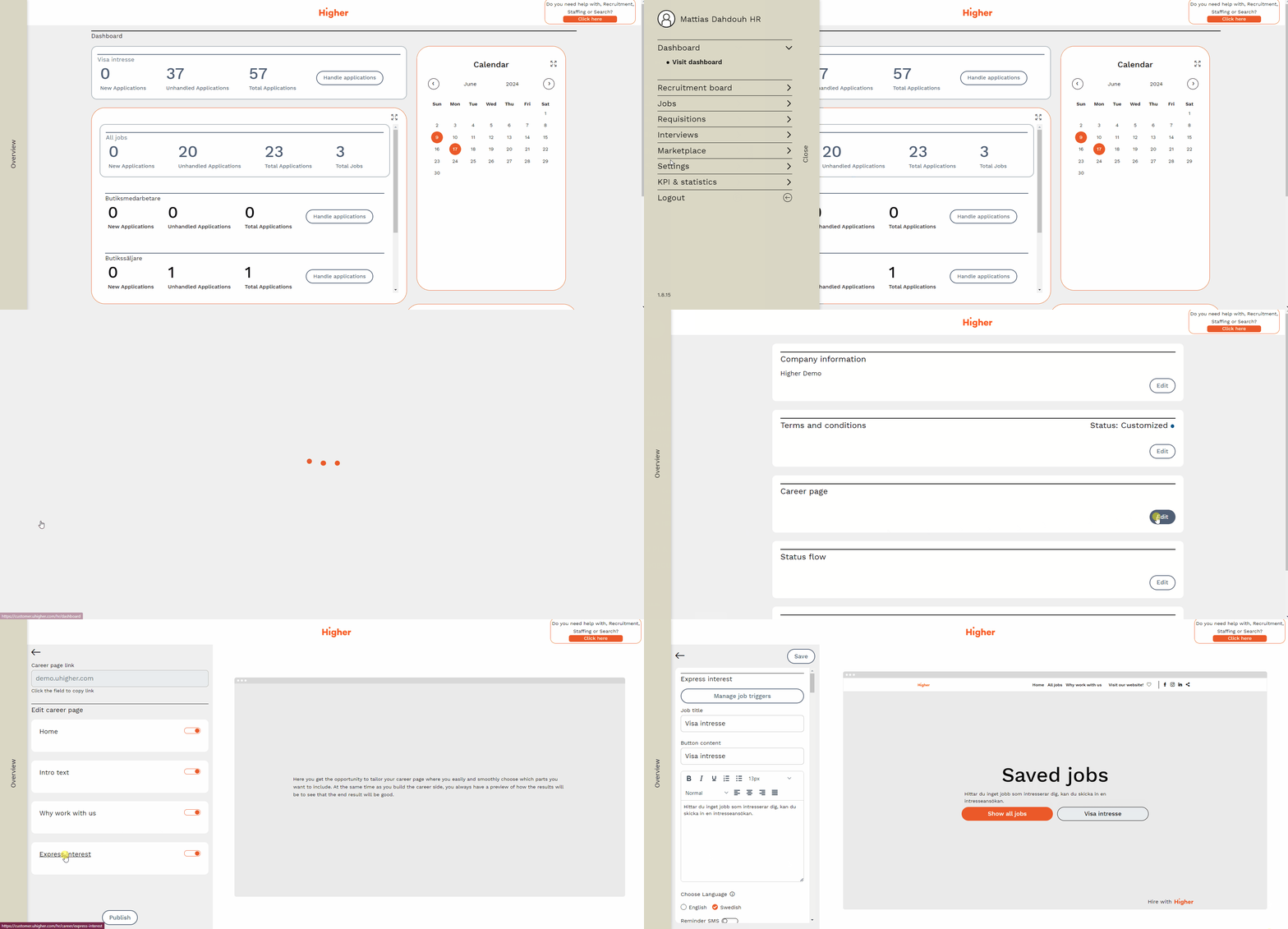
the job ads you have already published. To activate unsolicited applications/express interest, you need to go to
Overview > Settings > HR-settings > Career page > Edit > Express interest
General design
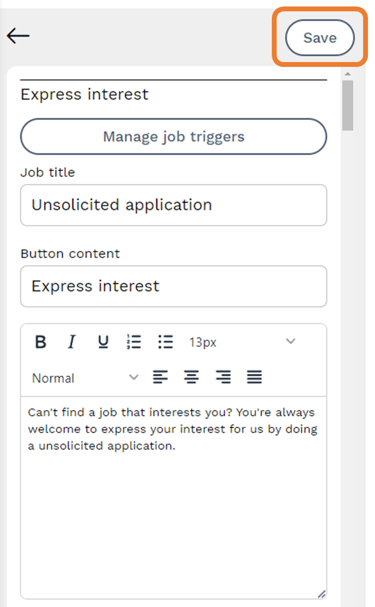
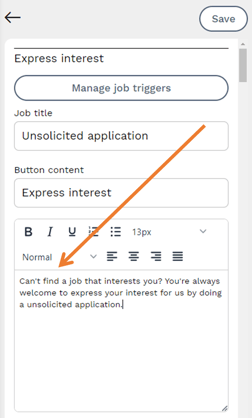
Here you can decide the button content, the job title and whether it should be a unique trigger for unsolicited applications.
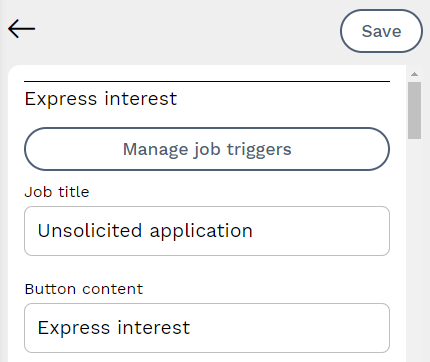
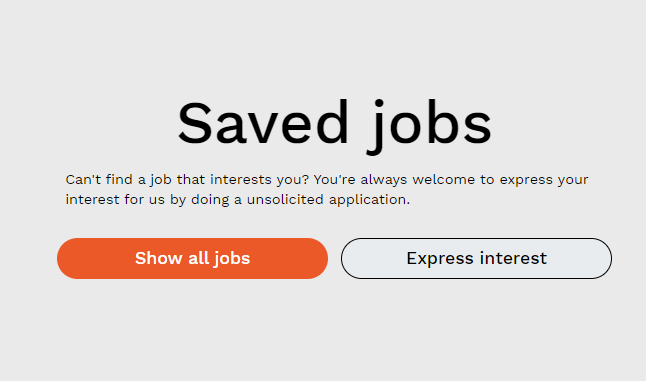
Button content is the text that visitors will see on your career page. On the right-hand side of the page you can see a preview of what it will look like.
Job title determines what the job position is called in your recruitment board.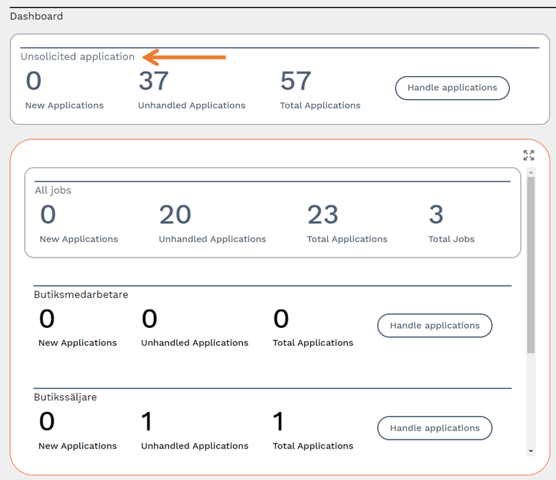
Empty job list
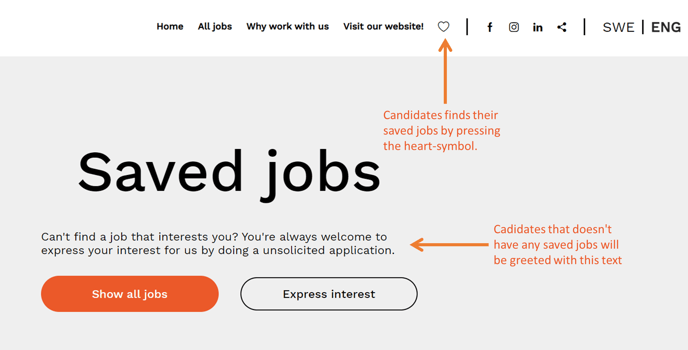
If the job list is empty for the candidate, they will be greeted by the text you input here.
Job description
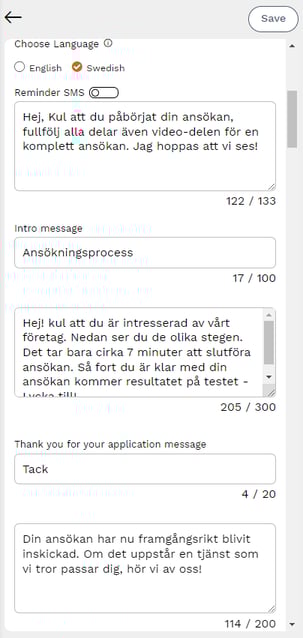
Unsolicited applications contain the same text fields as job adverts/templates. Here you can choose the text language, activate SMS reminders, describe the application process and determine the confirmation message to the candidate upon receipt of the application.
CV-module
The modules you can include in the unsolicited application are Skills (you can have up to 40 skill questions), Personality Test and Video Questions. In the image below, Skills and Video Questions are active and Personality Test is inactive.
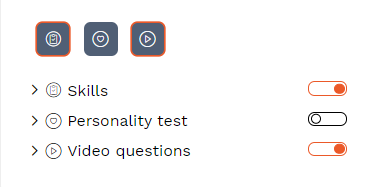
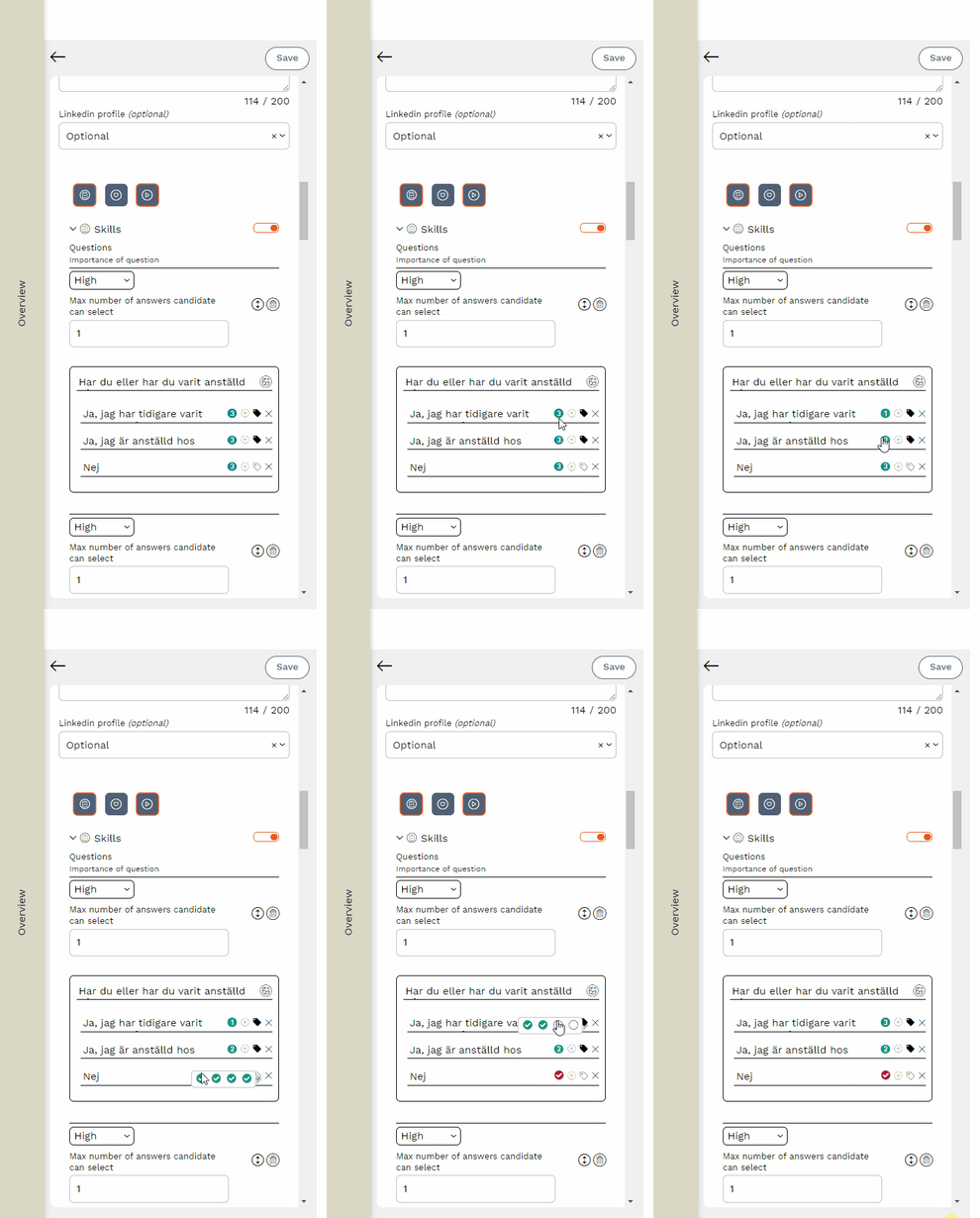
The modules are compressed in this view and differ slightly in appearance from the job templates and adverts. To weigh the answer options, you need to click on the green symbol.
Tags
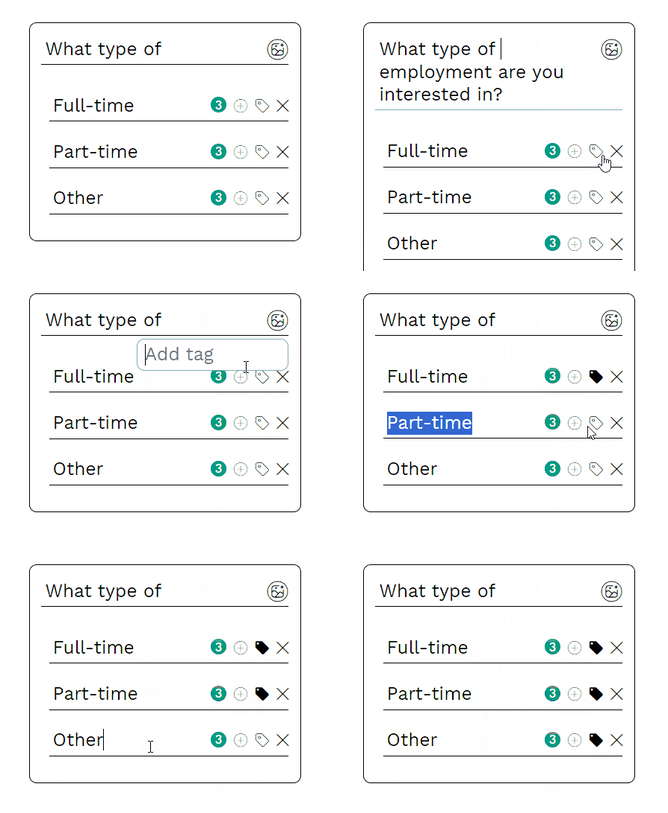
It is a good idea to tag some of your answer options so that you can search for them in the recruitment board. Examples of tags could be the type of employment the candidate is after, the type of position, department, role, etc.
All the answers you tag will be searchable in the recruitment board and appear directly on the candidate card. This way you can quickly and efficiently search for the right candidate based on how they have answered.
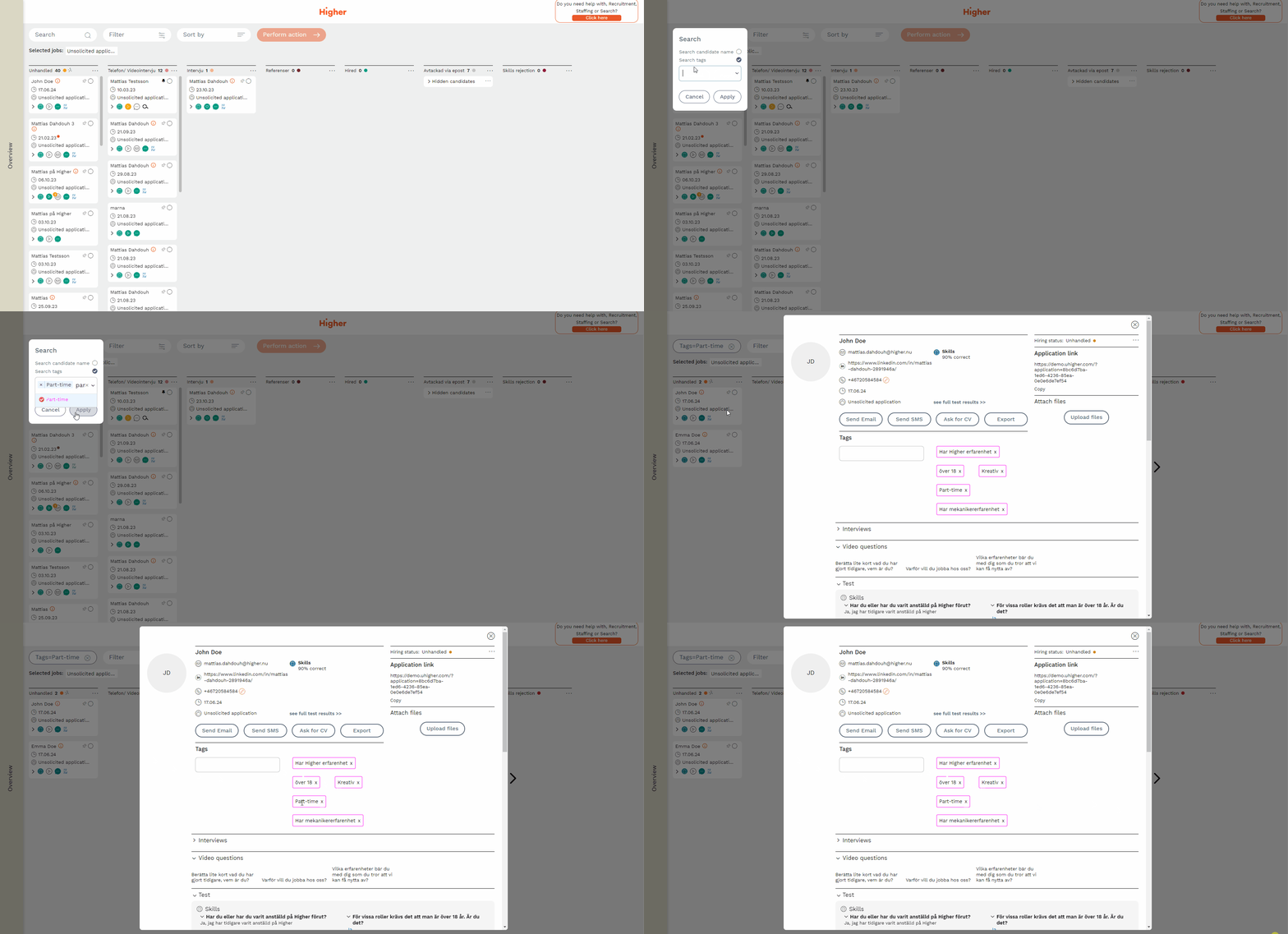
Black tags mean that a user has manually entered a tag on a candidate card.
Pink tags are tagged answer options from a job application.
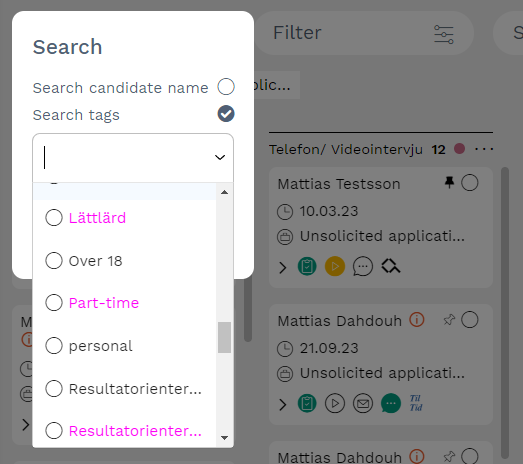
💡 It is also possible to combine tags, e.g. "Part-time" and "Extra if needed". When you combine tags, the candidates who answered both "Part-time" and "Extra if needed" will be visible, the rest will be filtered out. If you do not find a candidate with your selected tags, there is no candidate that fulfills those specific criteria.
⚠️ If you have tagged an answer option but the tag does not appear among the options in the list, there is no candidate who has selected that particular answer option associated with the selected tag.
Save your changes
Once you have made the changes you want to make, it is important that you press Save at the top left.