![logga.png]](https://forum.higher.nu/hs-fs/hubfs/logga.png?height=40&name=logga.png)
Table of Contents
What are the different job statuses?
How do I change the status of an ad?
How do I find my old applications?
Can I reactivate an old ad?
What are the different job statuses?
-
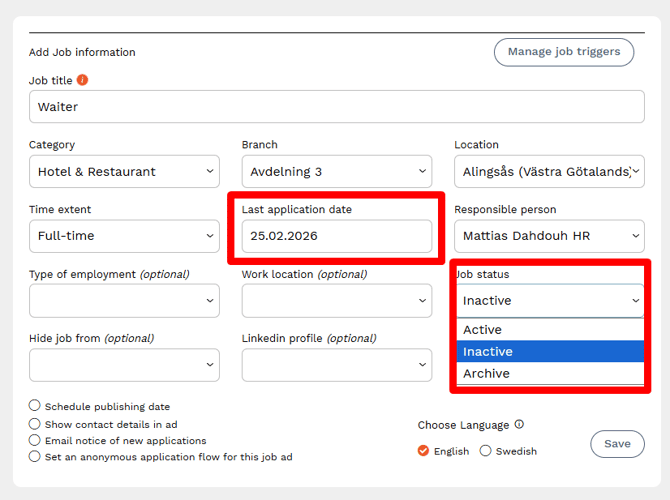
Active: The ad is live and published. Candidates can see the position and submit their applications.
-
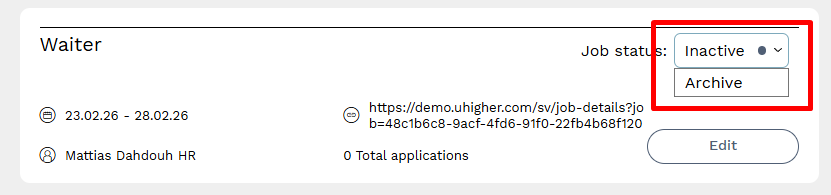
Inactive: The ad is unpublished and closed to new applications, but you are still working on managing the candidates who have already applied. An ad automatically becomes inactive once the application deadline has passed.
-
Archived: This functions as a "delete" feature to clean up your job list. When the recruitment is completely finished and all candidates have been processed (hired or declined), you should archive the ad.
How do I change the status of an ad?
You can easily change the status by going to Overview > Jobs > Edit jobs. From there, you can manually switch from Active or Inactive to Archived.
How do I find my old applications?
If you need to access candidates in finished or ongoing processes, you can filter your view under Menu > Recruitment Board > Manage Candidates.
Can I reactivate an old ad?
Yes, it is possible – but we generally do not recommend it.
If you want to activate an inactive or archived ad, click Edit and change the status to Active. To ensure your recruitment is as effective as possible, please consider the following:
-
Better Visibility: We recommend creating a completely new ad instead. Many job platforms flag old ads, meaning a reactivated ad often gets significantly less reach than a fresh posting.
-
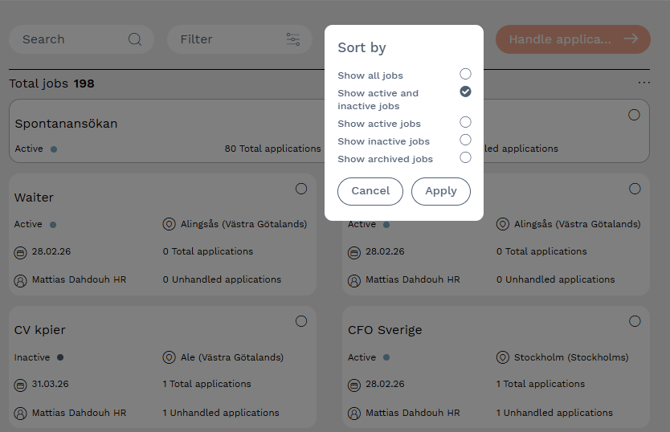
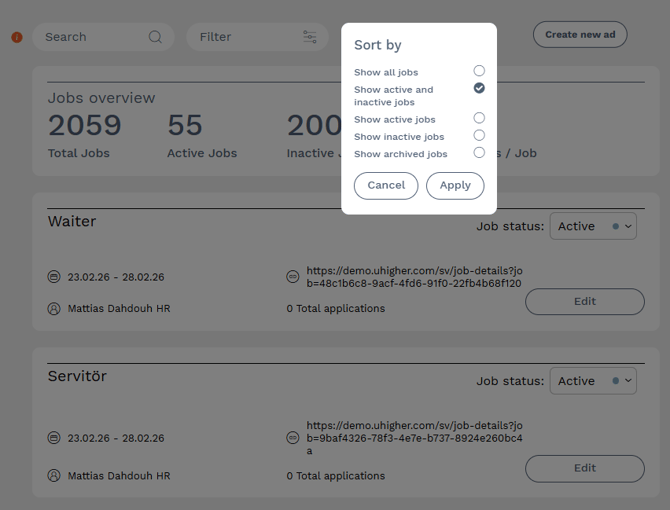
Sorting and View: In your job list under Menu > Jobs > Edit Ad, only Active and Inactive jobs are shown by default to keep the list organized. Archived ads are hidden, but you can use the sorting/filter function at any time to include them in your view.
To reactivate an ad:
-
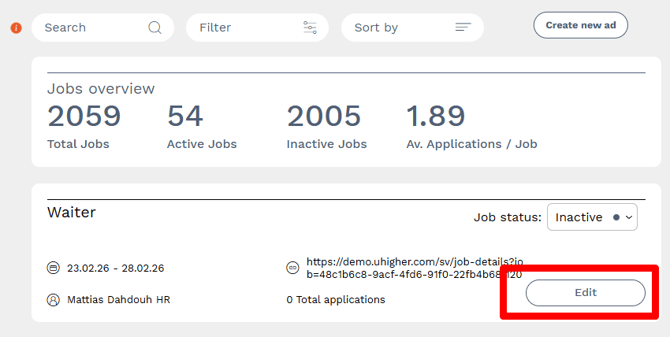
Once you have located the ad, click Edit.
-
Select the status Active.
-
Ensure the application deadline is updated. The system will not allow you to activate an ad if the deadline has already passed.
Pro Tip: If you choose to create a new ad but still have candidates in the old one, you can bring both ads into your Recruitment Board and work with them simultaneously.