![logga.png]](https://forum.higher.nu/hs-fs/hubfs/logga.png?height=40&name=logga.png)
- Find the Recruitment Board
- Navigate among the jobs
- Handling the candidates
- Navigate among candidates
Find the Recruitment Board
To manage candidates in Higher, go to the recruitment board. There are two ways:
1. Click "Handle applications" one of your ads in the dashboard. This will populate the board with the candidates who applied for that specific job.
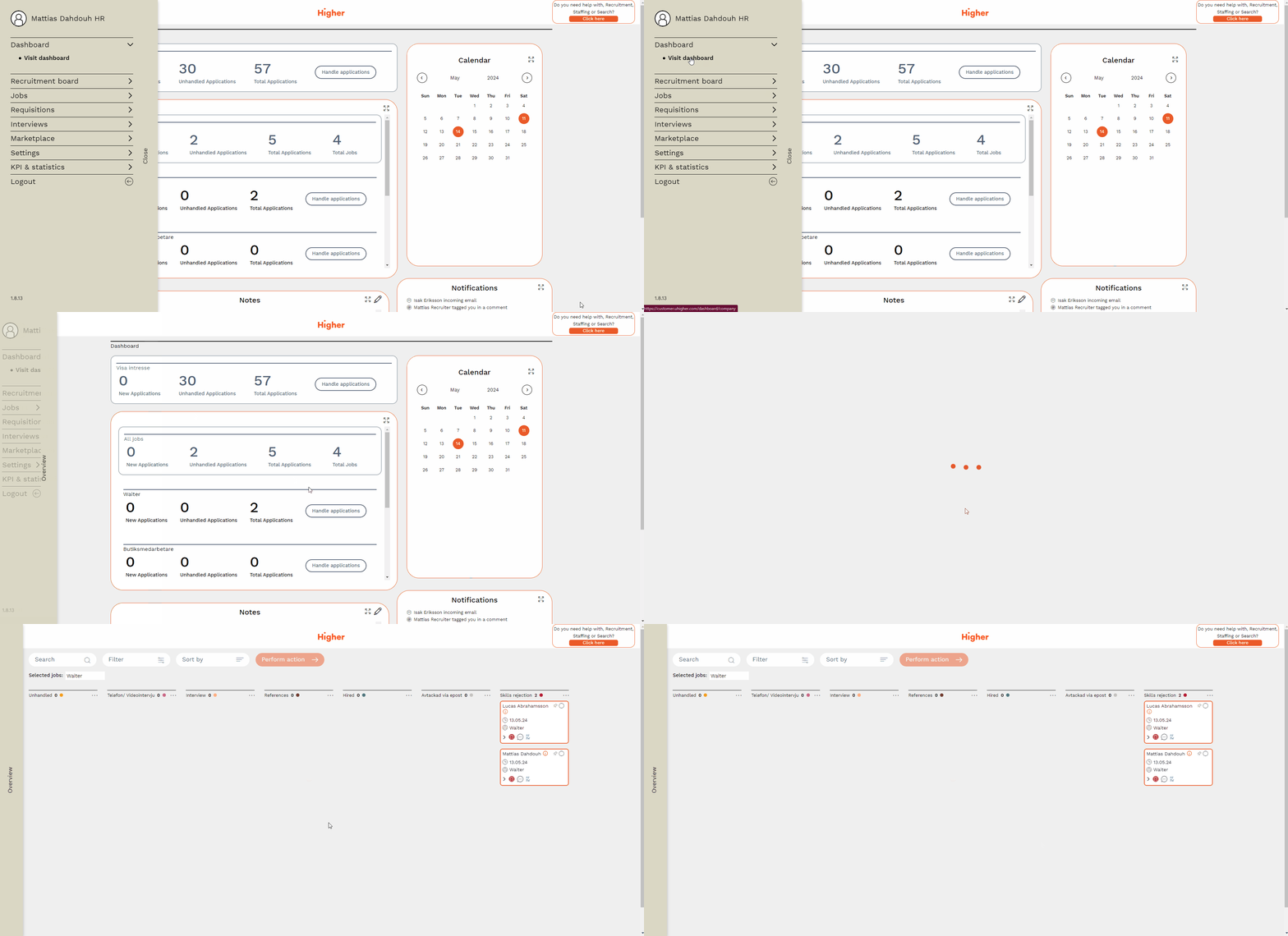
2. Click on Overview > Recruitment board > Handle candidates. Here you can select one or more jobs that you want to manage
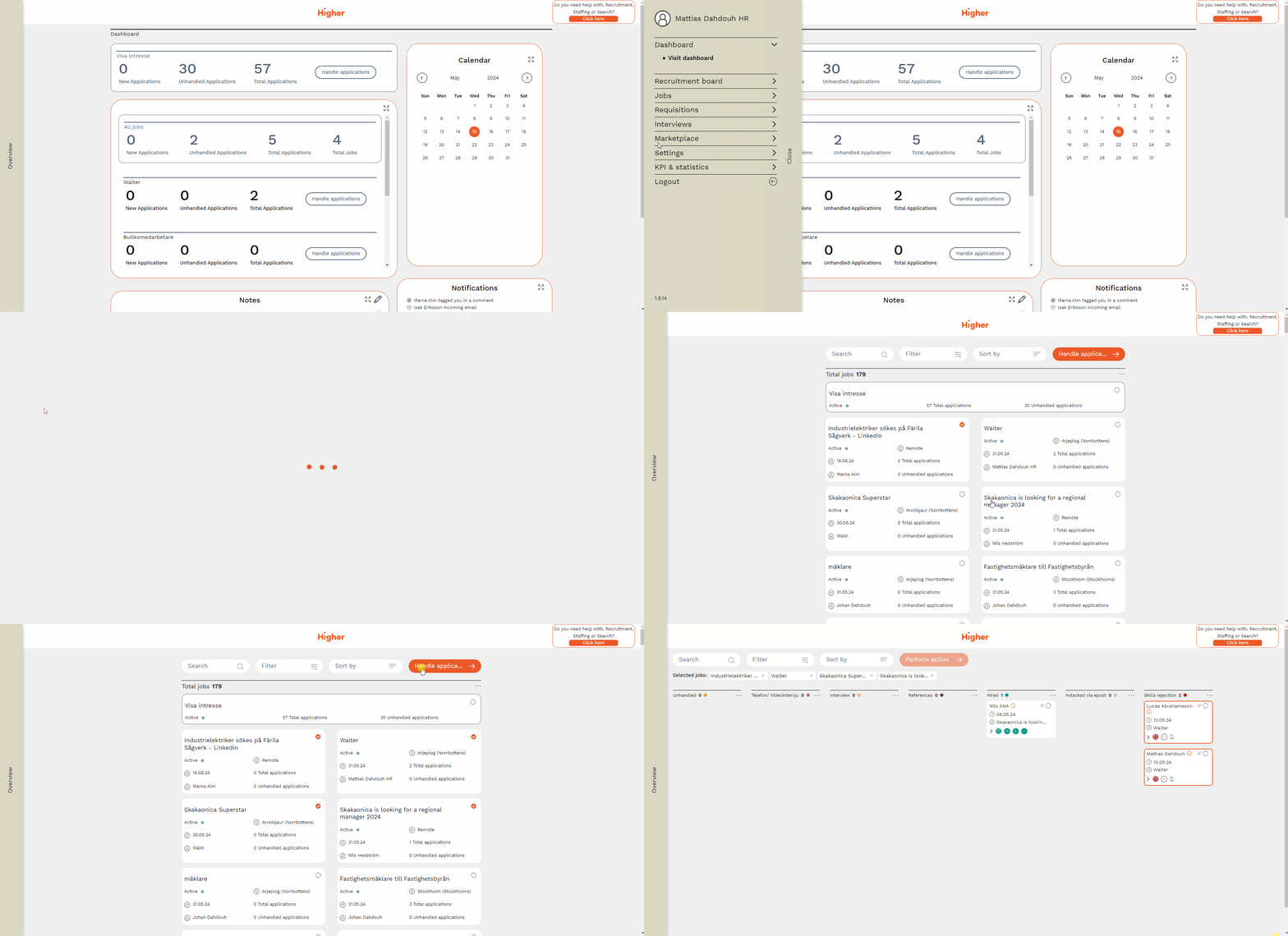
Navigate among the jobs
In the board you can search, sort and filter among the jobs. In addition, you can also select one or more jobs to start managing them in the recruitment board.
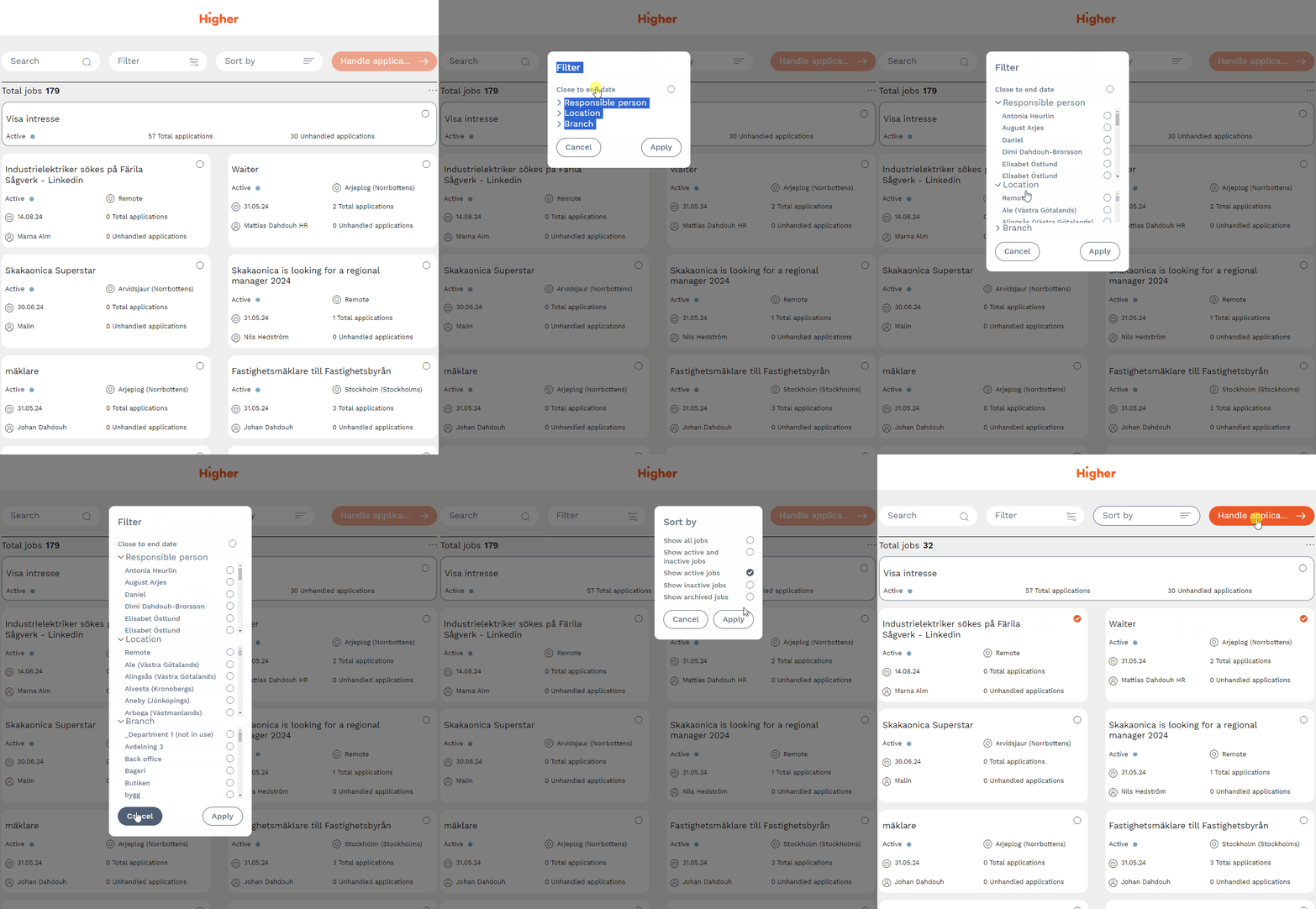
Job status
- Active jobs - jobs that are active and visible on published pages where the application deadline has not yet passed. You're still actively recruiting candidates and recruitment is in full swing.
- Inactive jobs - Jobs where the application deadline has passed but recruitment is still in progress. Jobs with this status are hidden from published platforms. Usually a mode where you go through all candidates that have applied etc.
- Archived jobs - when you are done with a recruitment, you should archive the job in order to keep the interface updated and “clean”. Higher never deletes the jobs, they are hidden under the status “archived”.
Handling the candidates
To manage candidates for one or more jobs, follow the steps below.
Overview > Recruitment board > Handle candidates > Search jobs > Select jobs > Handle applications
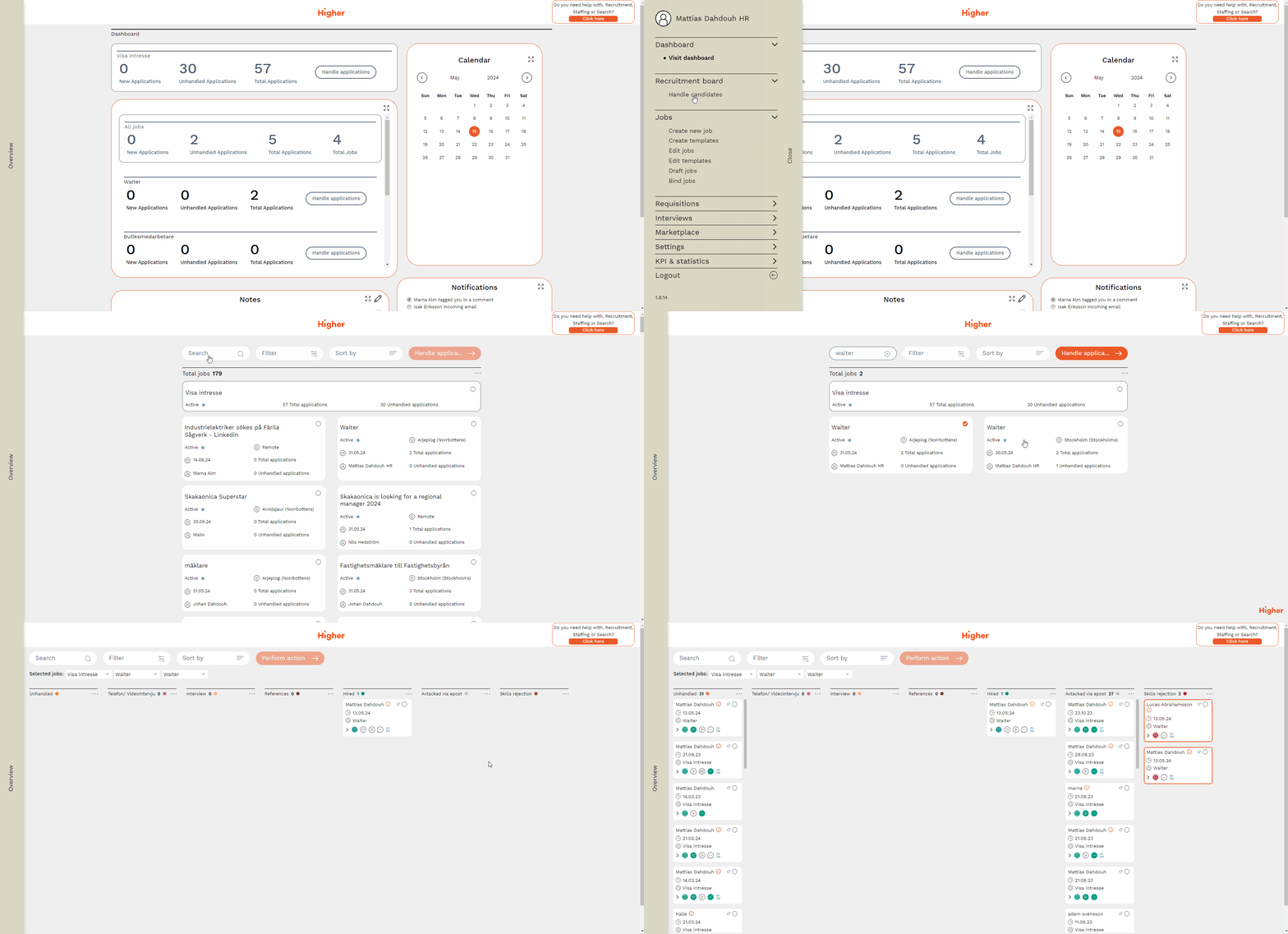
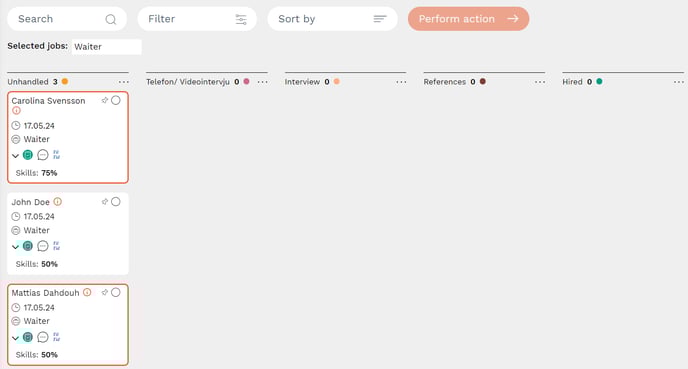
The recruitment board shows a visual summary of all candidates and
what status they are in. Candidates who have applied for a job are listed
under the 'Unhandled' column with their name, application date, job and
modules completed. Those who best match the requirements profile are at the top of the list.
Navigate among candidates
In Higher, you can review and manage your candidate cards in several ways.Below shows which methods are available.
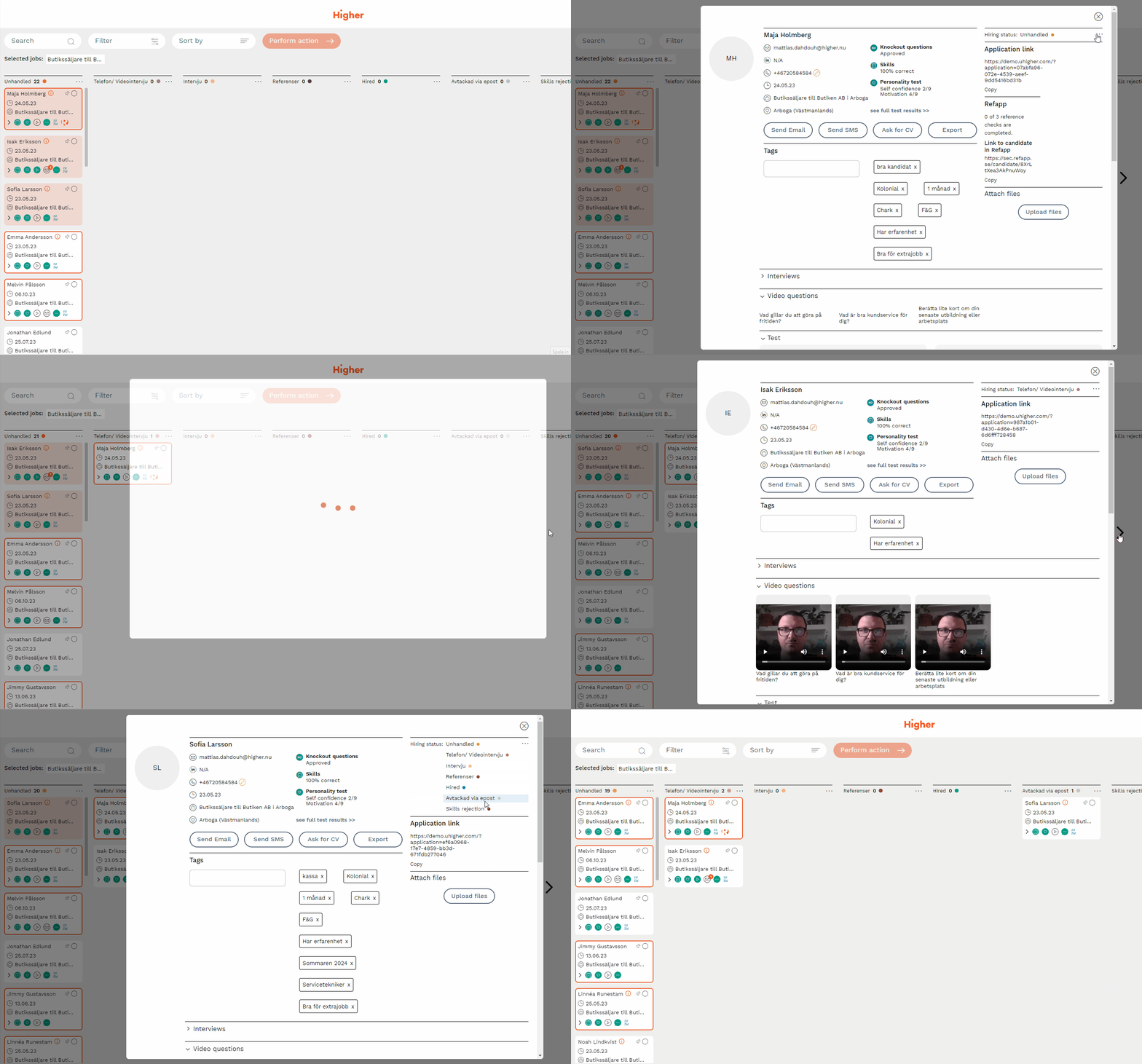
Method 1 - Via the candidate card
You can change the hiring status one-by-one via the three dots on the right. Scroll to the next candidate by pressing the black arrow.
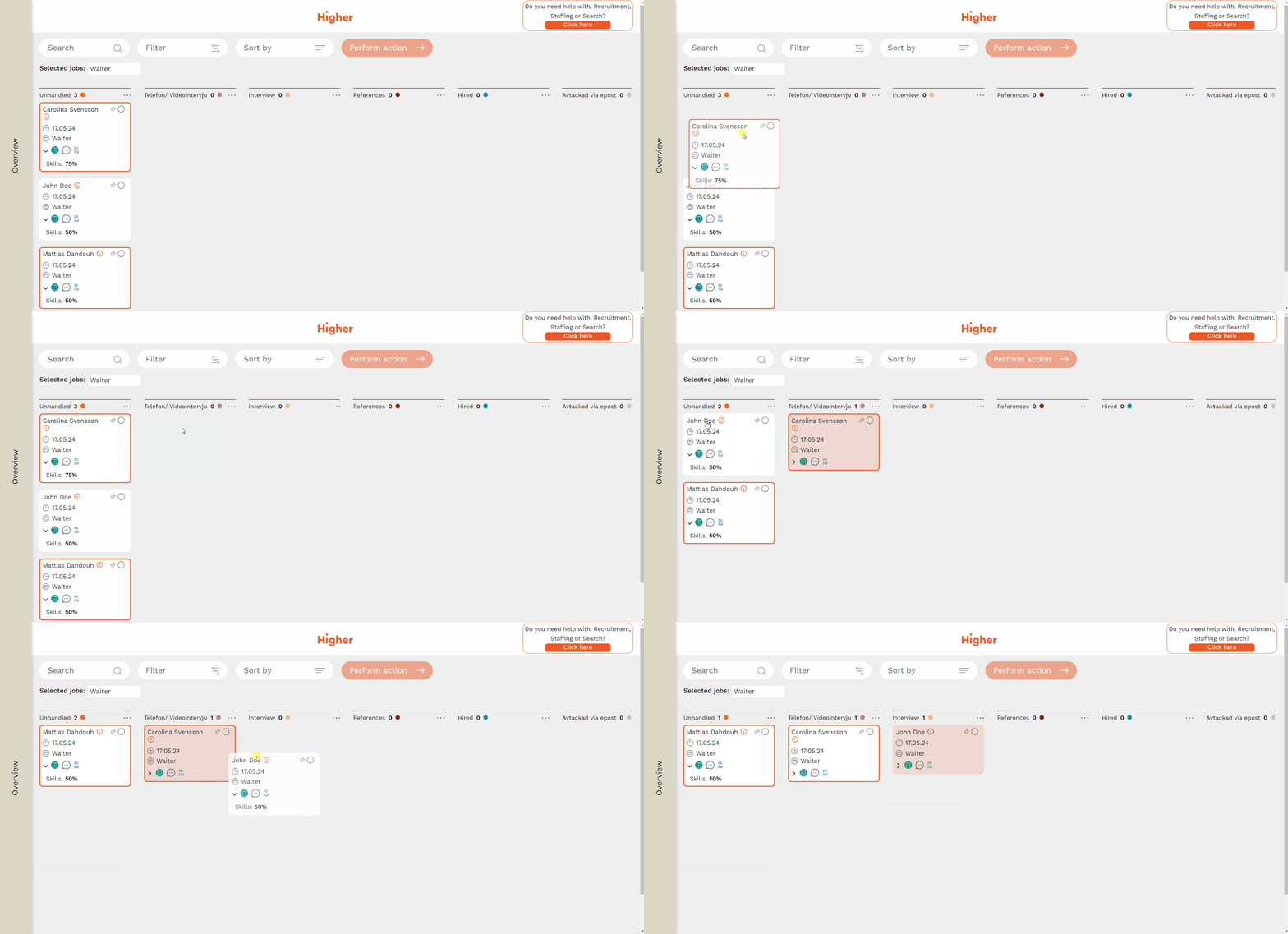
Method 2 - Drag and drop
You can drag and drop one candidate card at a time from one column to another.
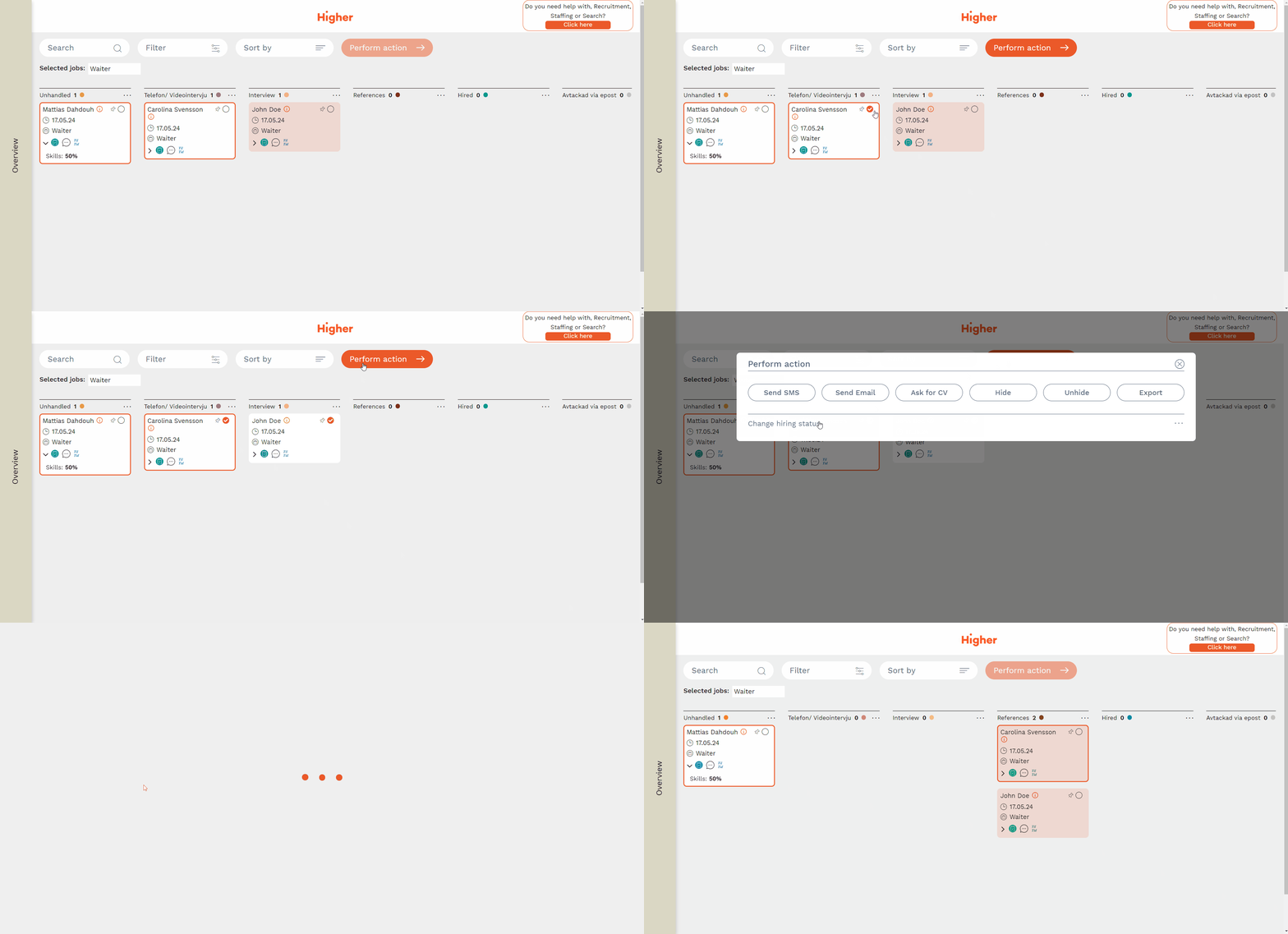
Method 3 - Select multiple
You can select one or more candidate cards and press Perform Action > Employment Status to move them from column X, Y, Z to another column.
Method 4 - Select all
Just as you can select multiple one or more cards, you can also choose to select all in one or more columns.
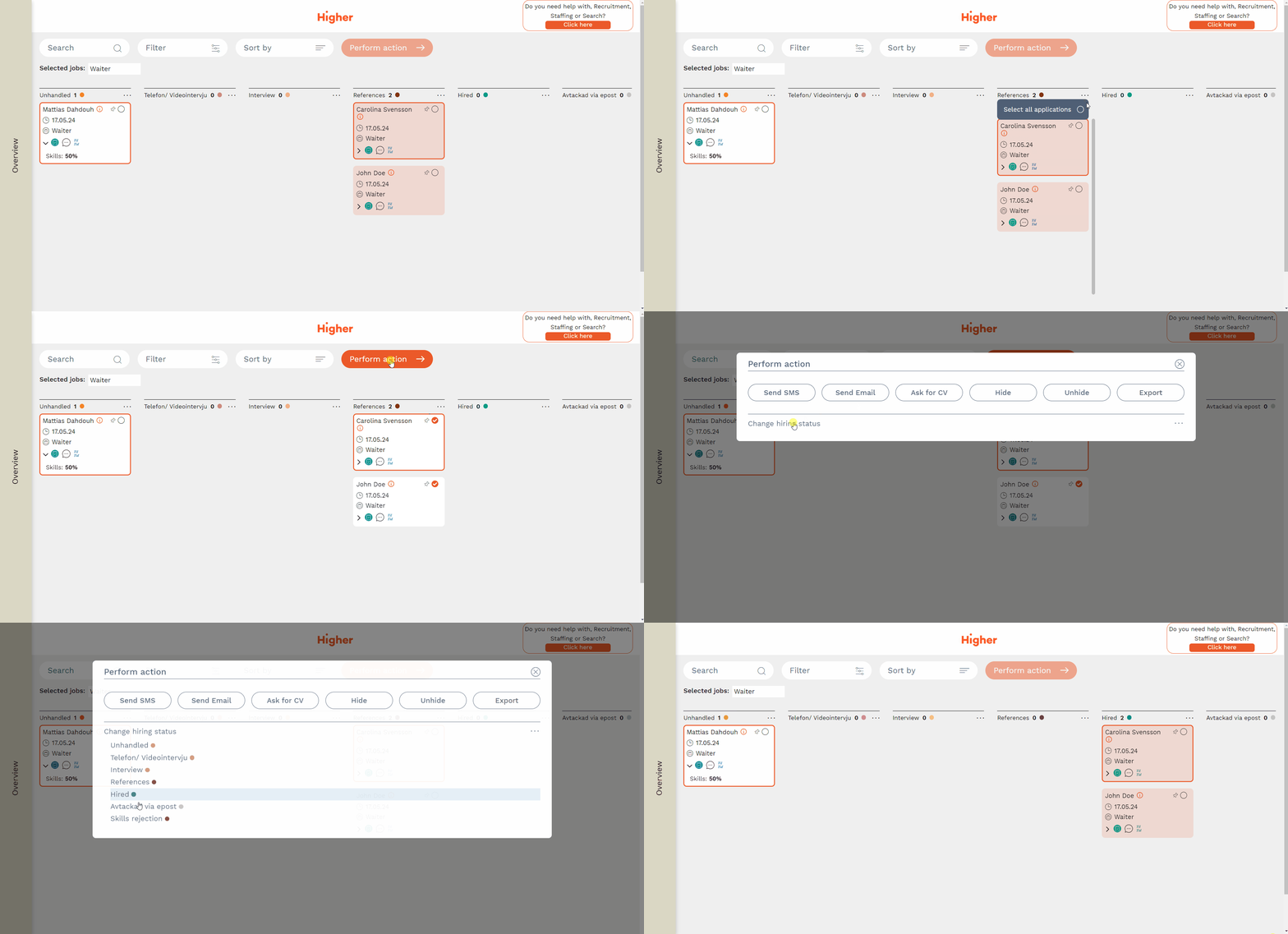
💡 While above examples shows how you move candidates from one column to the other, the same principle applies for sending E-mails, SMS or asking for a CV. Higher is designed to make it easy for you to handle large amounts of applications at the same time and this is one of many ways that enables you to do that.