![logga.png]](https://forum.higher.nu/hs-fs/hubfs/logga.png?height=40&name=logga.png)
Table of contents
- Share a candidate card
- Get links
- Manage shared links
- Review candidate
- Manage comments
- Share multiple candidate cards
- Filters for shared candidate cards
With the “Share candidate card” add-on, you can easily and securely share your candidates with external stakeholders. Perfect when you need to present potential candidates to colleagues and customers.
Share a candidate card
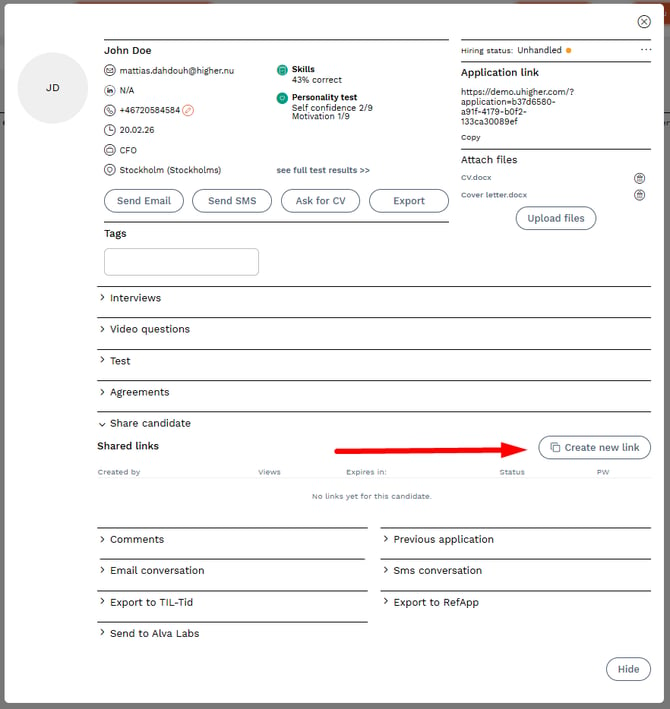
Go to the candidate you want to share -> Share candidate -> Create new link
Choose what to share and whether you want to password‑protect the share or not. We recommend always password‑protecting a shared candidate. When you have finished your settings, click “Create links”.
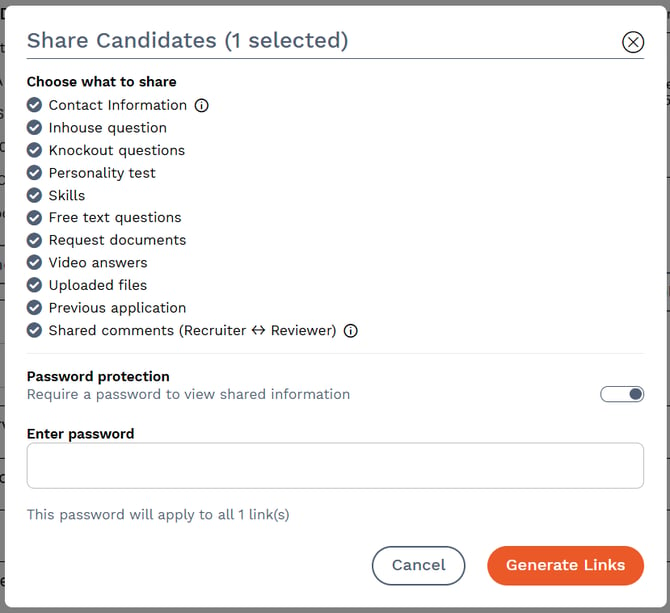
⚠️ Contact information is always shared and cannot be deselected.
⚠️ When you share a candidate, a new comment field is always created where the reviewer can leave feedback on the candidate. You can choose to share this comment field with the reviewer.
-
✅ If selected – The reviewer can both leave comments and see the full comment history
-
❌ If not selected – The reviewer can still leave comments but cannot see the history

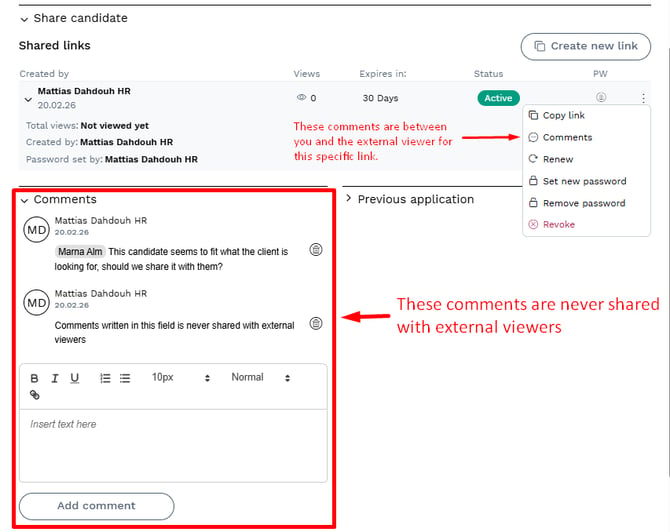
Internal comments added to the candidate between your users in Higher are never shared.
Get links
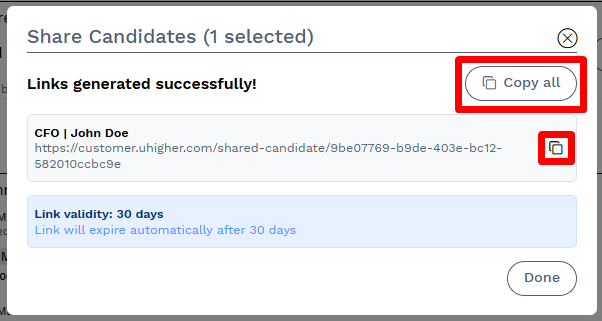
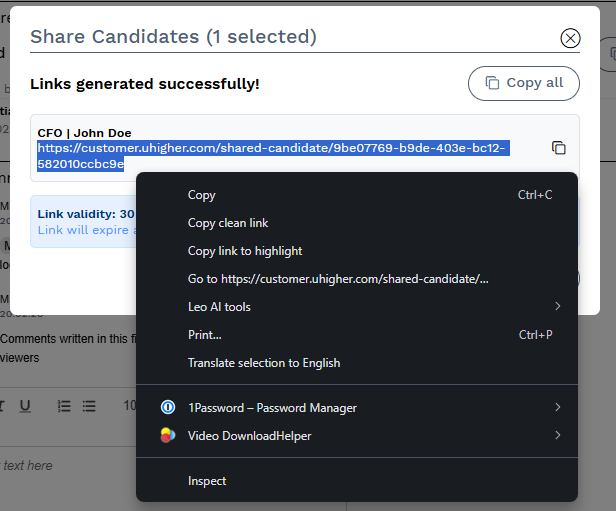
If you choose “Copy all” or click the copy icon (🗐), the system will automatically include {jobName} | {candidateName}: {link}.
This makes it easy to paste the information into, for example, a chat or an email.
Example of results:
CFO | John Doe:https://customer.uhigher.com/shared-candidate/2f6f34a2-c8a0-43ea-b155-1f01e8061b3e
Manage shared links
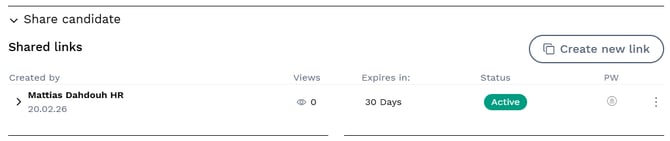
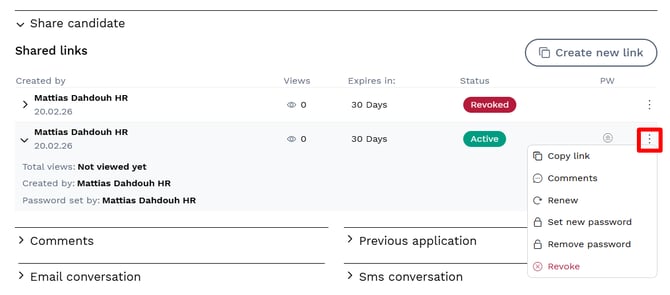
When you have created your new link, it will appear in the accordion menu with the following information:
- Who created the link
- Number of views
- When the link expires (the system automatically sets the validity period to 30 days and this cannot currently be changed)
- Current status (Active, Inactive, or Revoked)
- PW, i.e. whether it is password‑protected or not
- Menu options ( ⁝ ) for the link
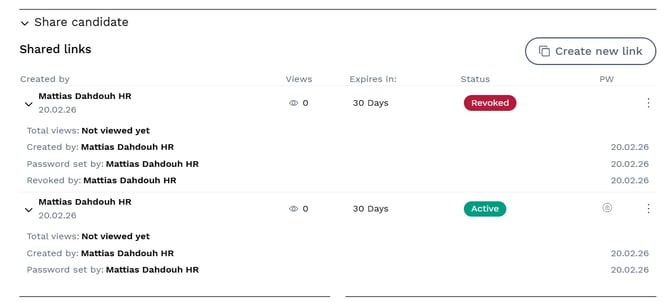
By expanding a share, you can follow the full lifecycle of the link. In the example below, you can see two different shares of the same candidate card – one Active and one Revoked link. Each row shows, among other things:
- Total number of views
- Created by
- Password set by
-
Revoked by
In the menu for each link, you can make different settings for that specific sharing link:
Copy link
Copy the link to easily share it further.
Comments
Open the comment thread and see the dialogue between you and the reviewer/counterparty.
Renew
Extends the link’s validity period by 30 days.
Set new password
Used if you have forgotten the current password or want to protect a previously open link with a password.
Remove password
Removes password protection from a password‑protected link.
Revoke
Makes the link inaccessible so that it no longer works.
Review candidate
If the link is password protected, reviewer will see this view.
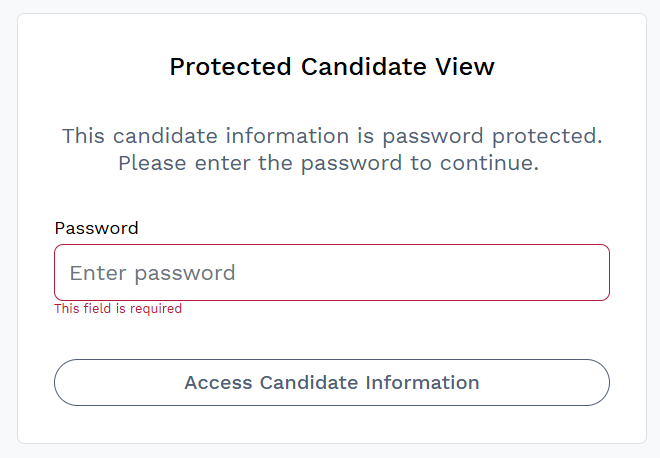
The reviewer must enter the correct password to open the candidate card. If the password has been forgotten, you can either create a new share or set a new password for the existing link.
To leave feedback, the reviewer enters their name (maximum 15 characters for technical reasons) and then writes their comment.
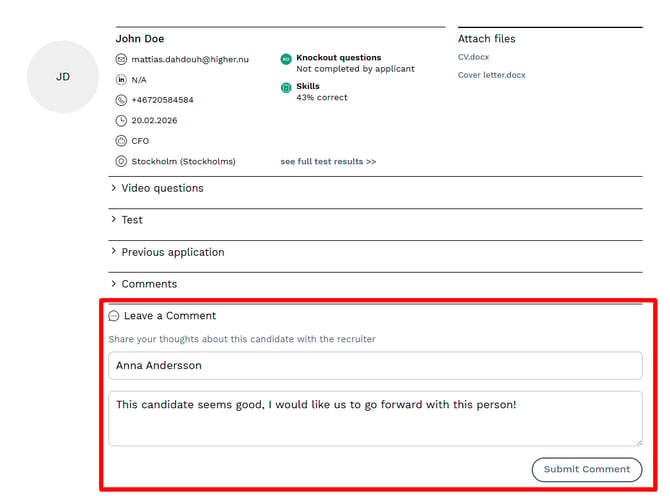
All comments are saved in a shared comment field between you and the person evaluating the candidate.
Reviewer’s view:
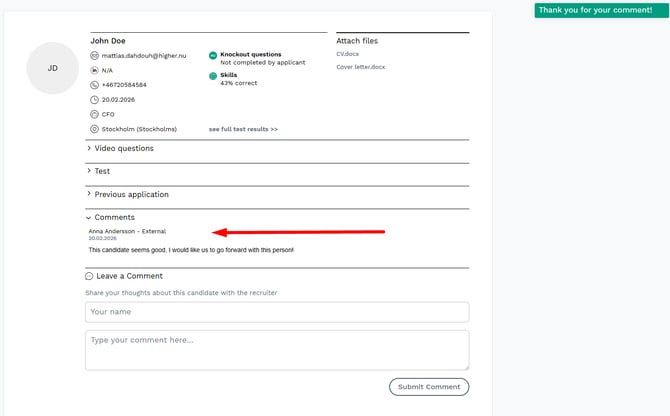
⚠️ Remember that the reviewer can only see the comment field if you have selected the option “Shared comments Recruiter ↔ Reviewer”. In that case, the reviewer can see both their own comment and the entire comment history in the comment field.

Manage comments
If someone leaves a comment on the shared candidate, you will receive both an email and a notification in your dashboard. When you click the notification in the dashboard, it is automatically marked as read.
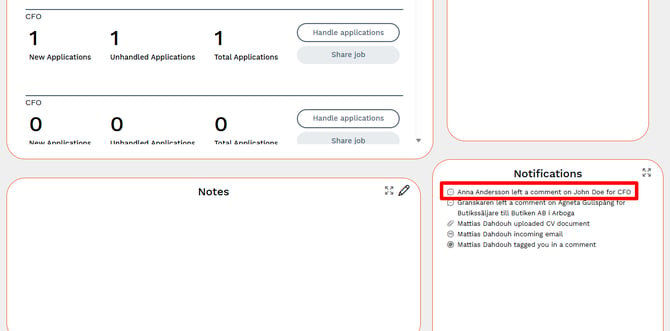
Here you can see what the reviewer has commented and add your own comment if you wish. Other users in the Higher system can also access the comment field and easily collaborate with each other.
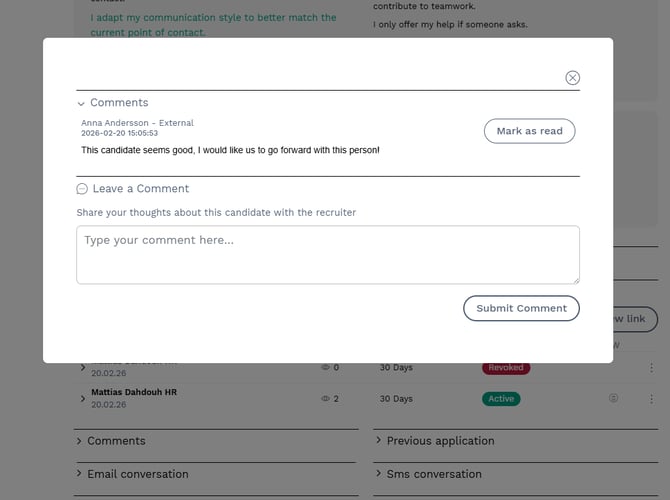
💡 From here, you can also choose to leave a comment on the card. Note that the reviewer does not receive a notification when a new comment is added, so for ongoing dialogue and questions we recommend that you communicate outside Higher, for example via email or phone. Instead, use the comment field to summarise important information about the candidate and to collect reviewers’ decisions on which candidates they want to move forward with in the process.
Share multiple candidate cards
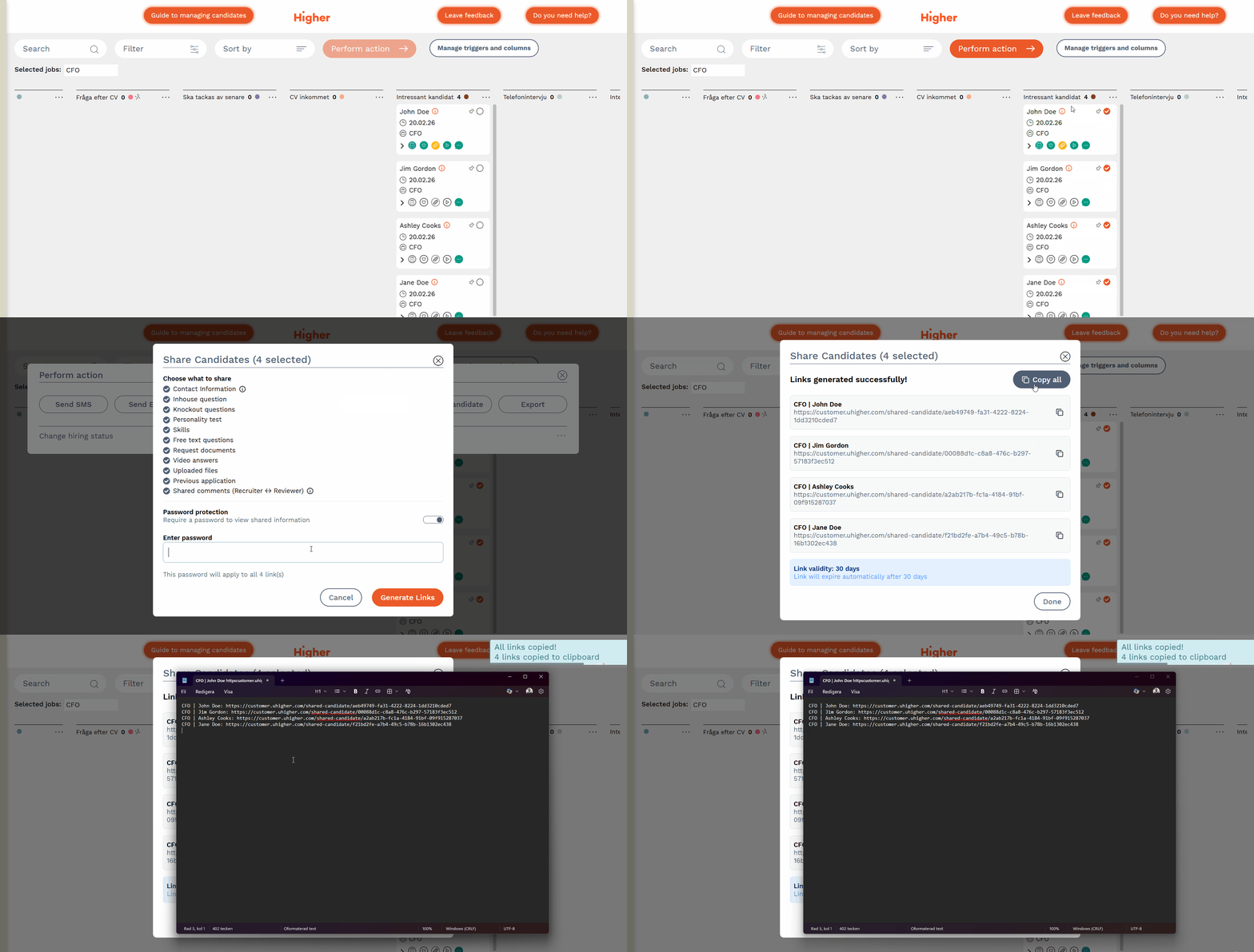
If you want to share several candidate cards at the same time, you can do this from the Recruitment board by selecting multiple candidate cards -> perform action -> share candidate.
The principle is the same as when you share a single candidate, but instead of the settings applying to one candidate, they are applied to all selected candidates. The “Copy all” button also ensures that all links are included in the clipboard.
⚠️You can share up to 30 candidate cards at a time this way!
Filters for shared candidates
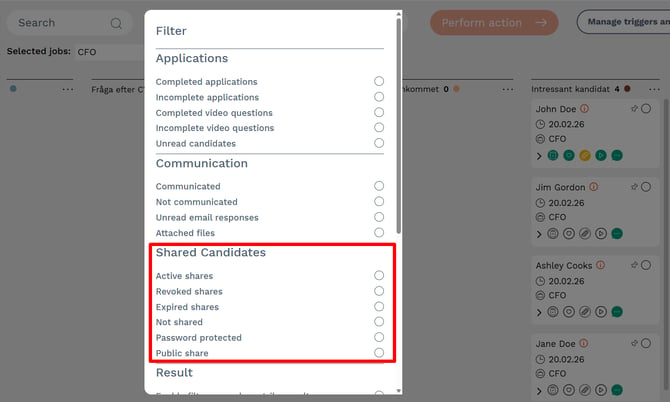
You can easily filter shared candidates based on different criteria:
- Active shares
- Revoked shares
- Expired shares
- Not shared
- Password protected
- Public share (links without password protection)