![logga.png]](https://forum.higher.nu/hs-fs/hubfs/logga.png?height=40&name=logga.png)
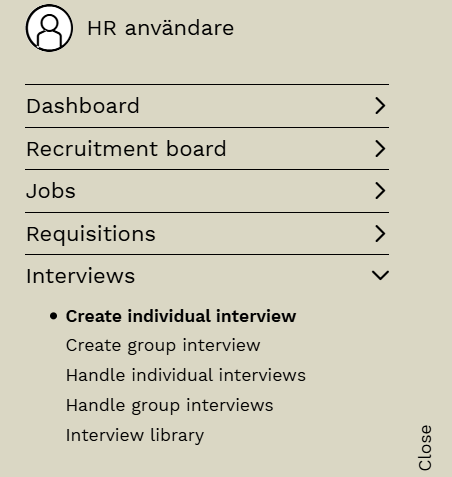
In Higher, you can create individual video interviews with candidates. Navigate to
Overview > Interviews > Create an individual interview
Prepare invitation – Select job posting and candidates
Here you choose which job posting it concerns and which status columns from the recruitment board Higher should search for candidates in.
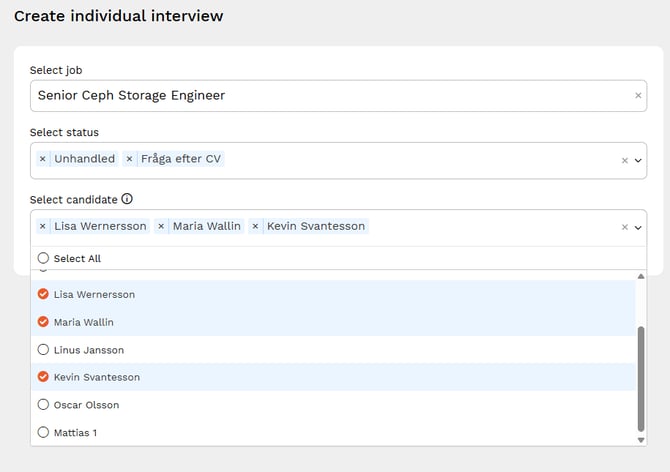
You can choose to select one, several or all candidates you want to invite to a video interview. Each interview will be conducted individually.
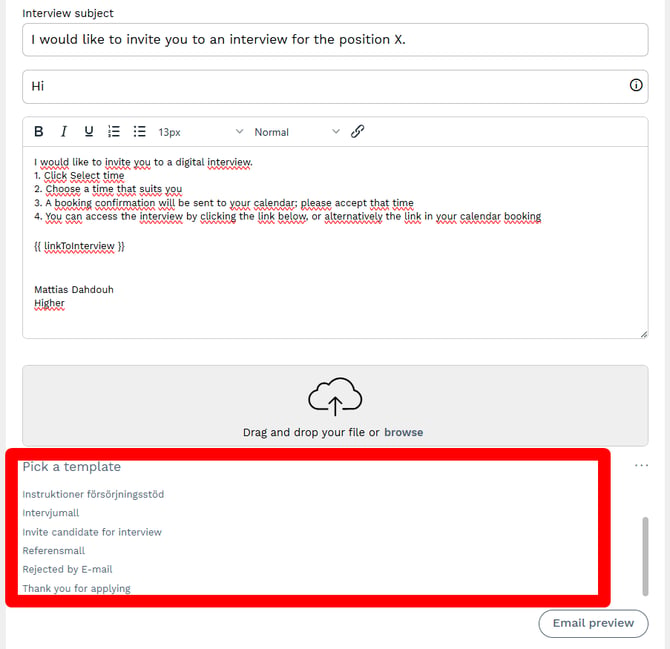
Prepare invitation – Email content
Decide on the subject line and the text to include in the email invitation.
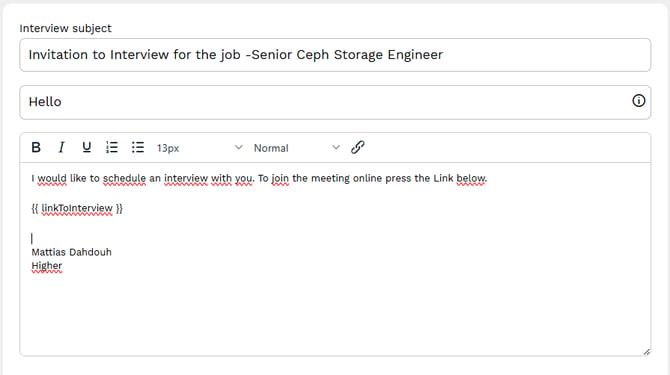
💡 You can also use prepared email templates for this purpose.
Prepare invitation – Select time, date, and duration
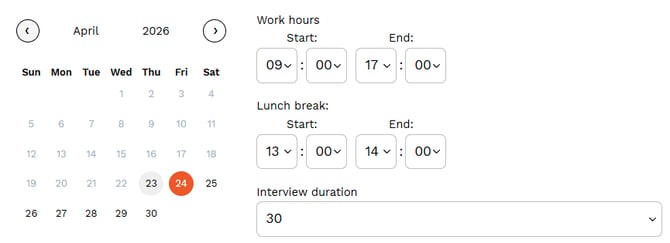
Here, you decide which suggested time slots the candidate can choose from. If the working hours are 09:00 to 17:00 with lunch from 13:00 to 14:00 and a duration of 30 minutes, all time slots from 09:00–12:30 and 14:00–16:30 will be available.
Prepare invitation – Send the invitation
Select the suggested time slots you want to send to your candidates by clicking the time slot > confirm.
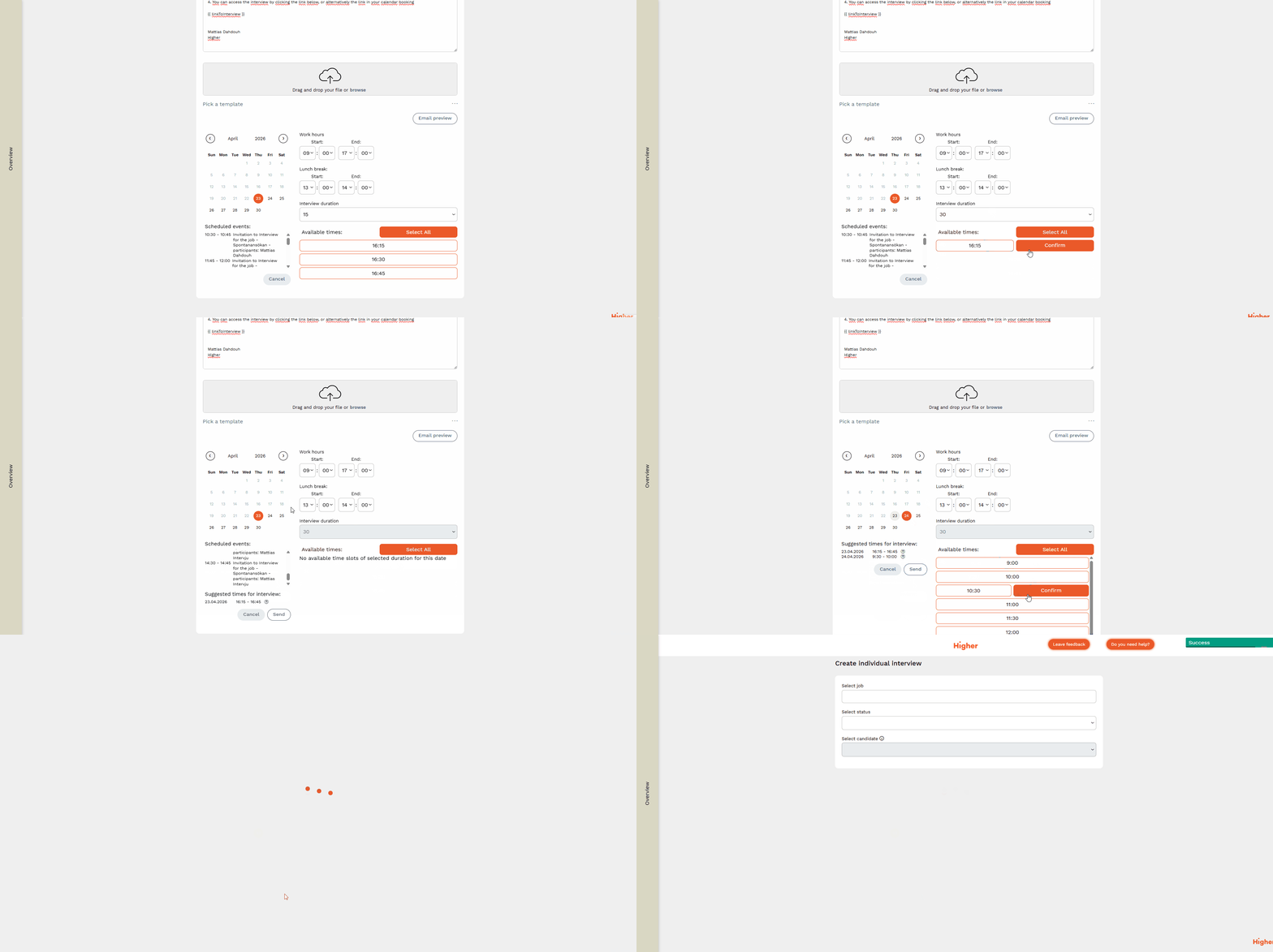
❗In this example, we have three candidates who will be invited to a video interview, so I must send at least 3 time slots, since all selected candidates must be able to confirm a time. If I send more than 3 suggestions in this case, all selected time slots will remain reserved until all candidates have confirmed their time or declined the interview.
Don’t forget to click “Send” when you are satisfied with your selections. An email invitation will then be sent to each candidate.
Confirm the interview
The email invitation looks like this, with the option to confirm a time or decline the interview entirely.
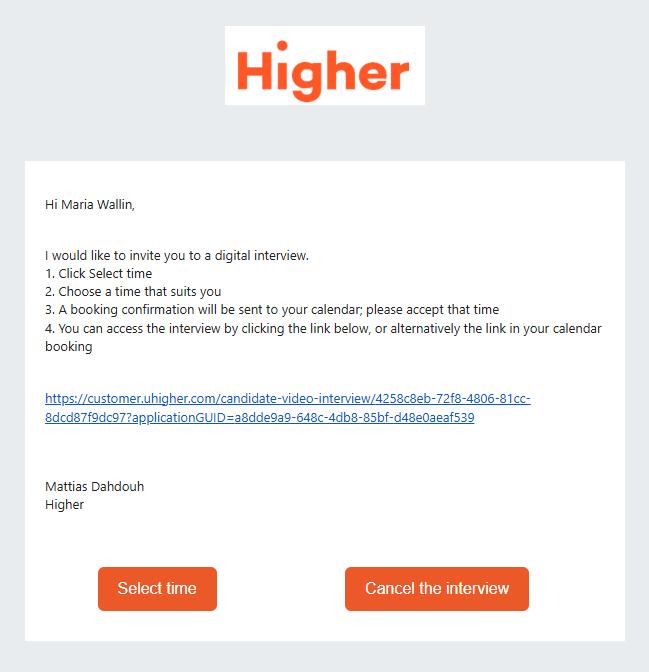
When the candidate clicks "select time", they can choose to decline or accept one of the offered times.
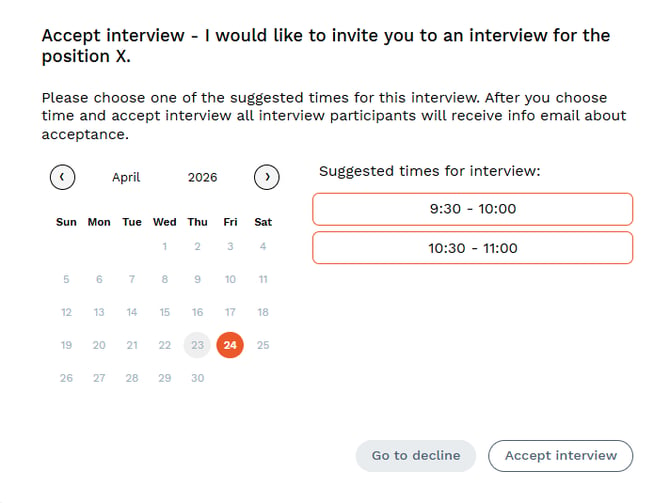
In this case, we want to confirm the interview time at 09:30-10:00 and accept the interview.
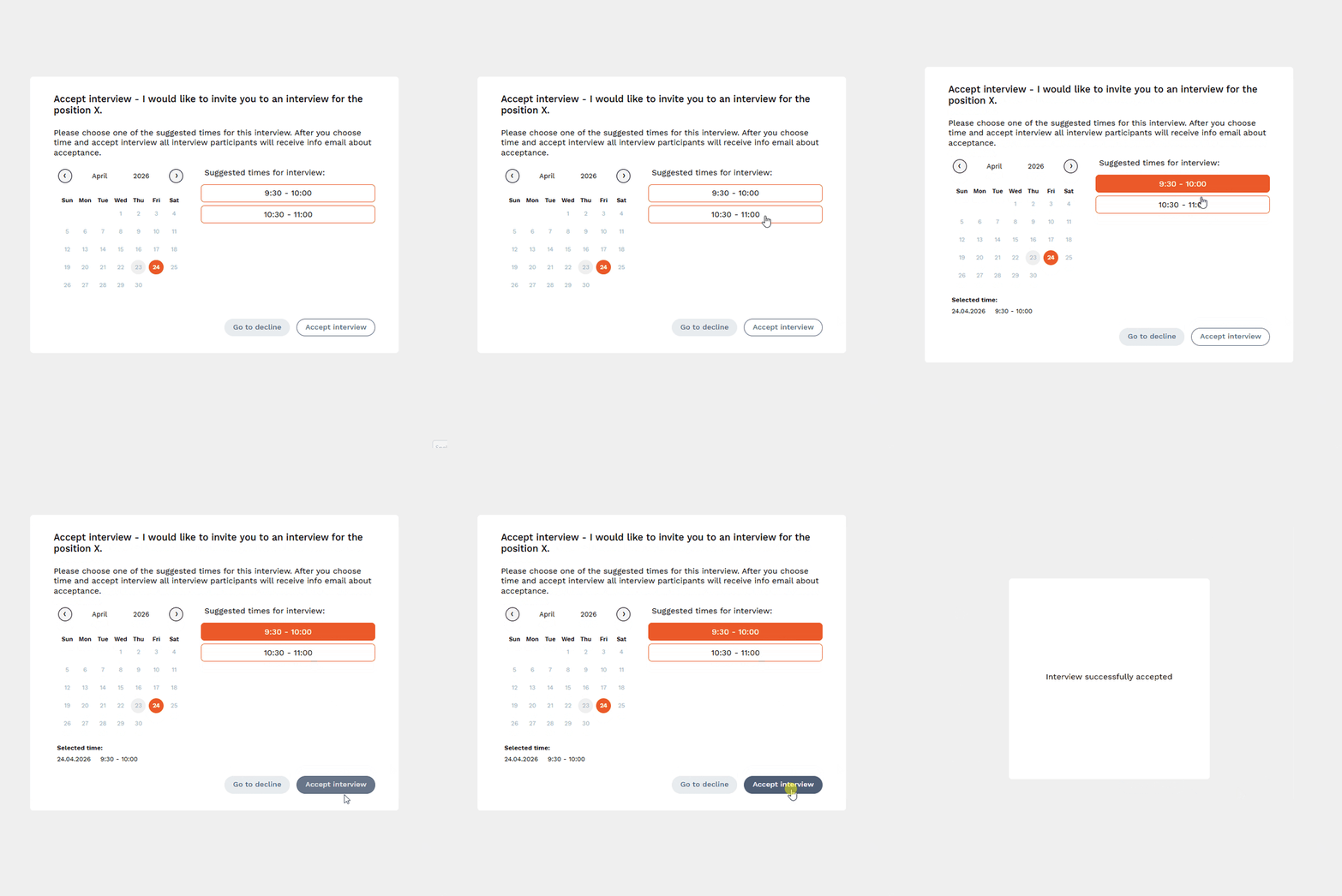
⚠️ The candidate will not be able to select a time that is in the past, only future time slots.
When confirming the interview
Once the candidate has confirmed the time, a calendar invitation will be sent to you and to the candidate’s email address. Accept the calendar invitation so it is added to your calendar.
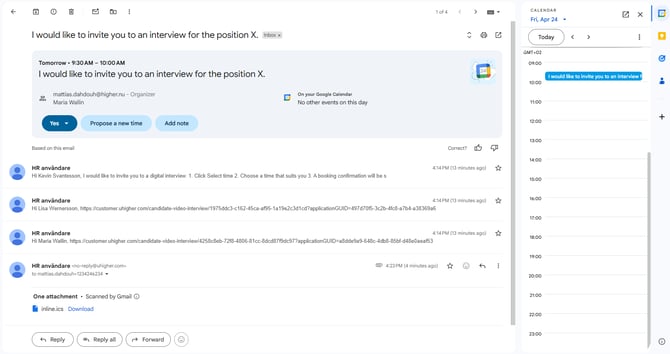
By opening the invitation, you can access the link that should be used to join the interview.
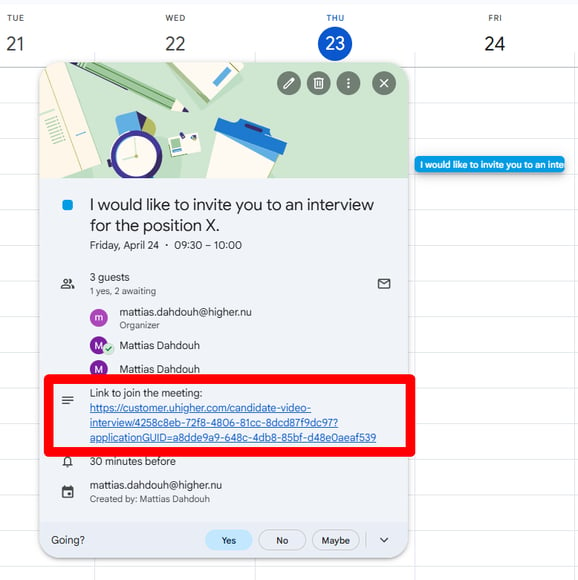
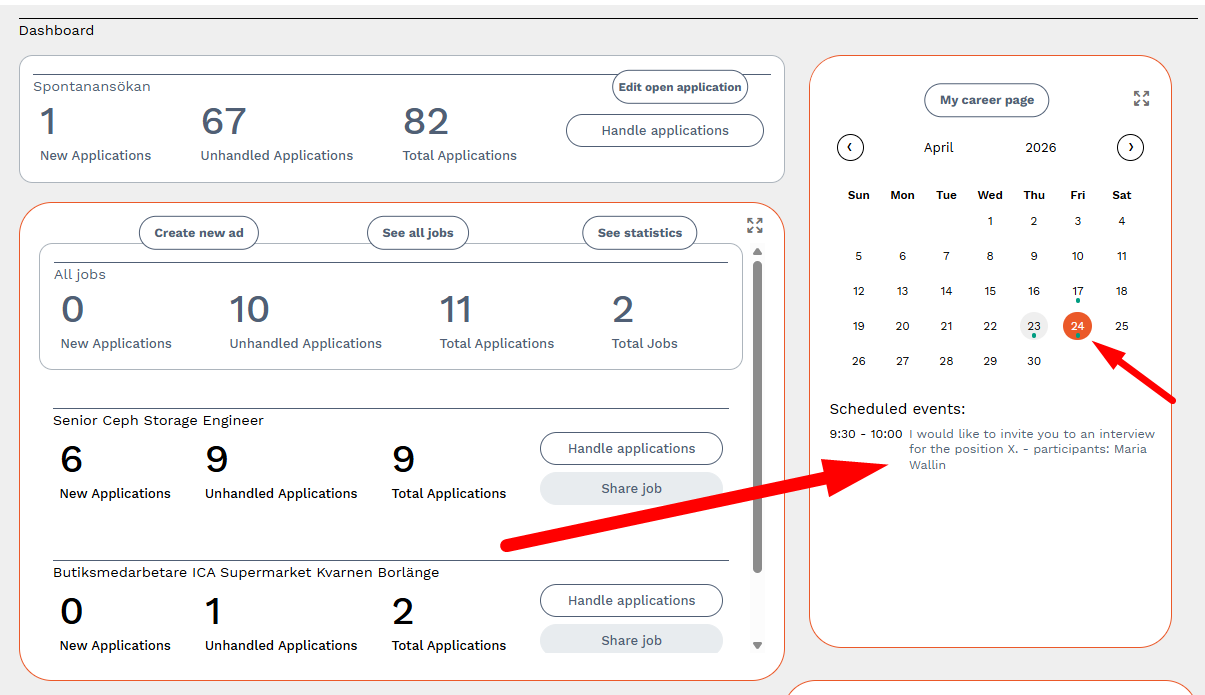
As a user in Higher, you can also view and join the interview via the calendar in your Dashboard. If you see a green dot under the dates, it means there are confirmed interview times. The link is clickable as long as the interview time has not passed.
If the interview is declined
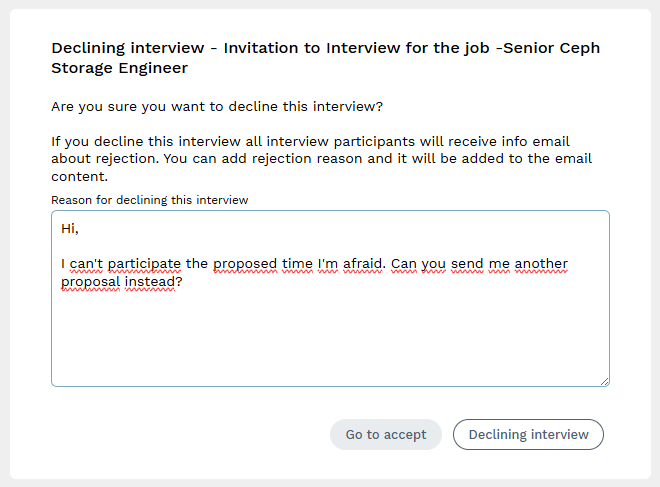
If the candidate chooses to decline the interview, they must write the reason for declining it and then click “Declining interview.” They will of course have the opportunity to change their decision and go back to accepting the interview by clicking “Go to accept.”
If the interview is declined, this will be confirmed to the candidate in the browser, and as a user in Higher, you can see that it has been declined on the candidate card. Any previously held interviews, will also be visible on the candidate card.