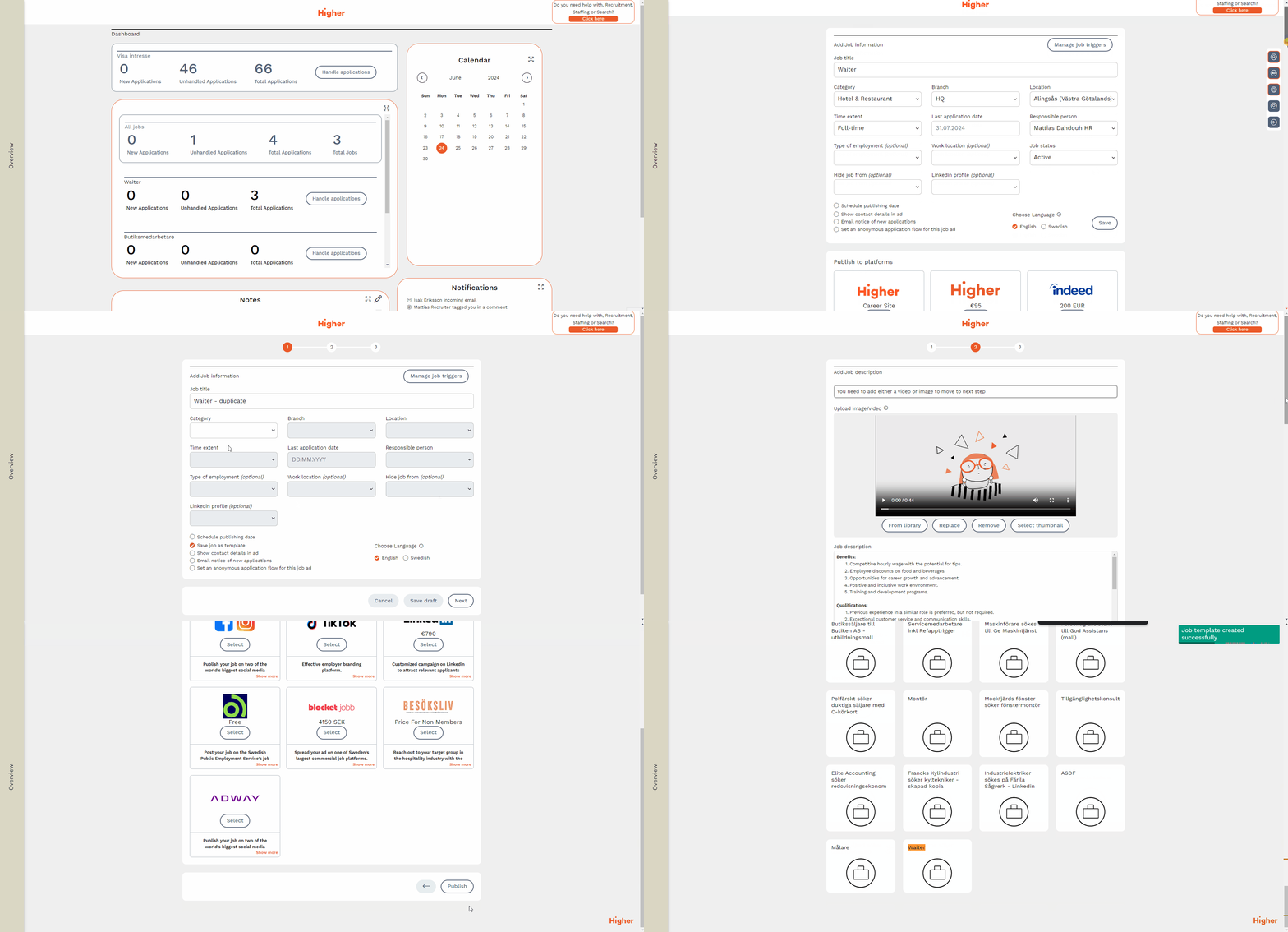
Create your first job advert and learn how to copy an existing advert and how to save it as a template for future use.
- In-house question
- Knock-out question
- Free text questions
- Skills
- Personality test
- Video questions
- Step 6 - Publish the job ad
- Step 7 - Create template from job ad
💡 Already know how to post a job but want to create a template from an old advert? See step 7 by clicking here
Step 1
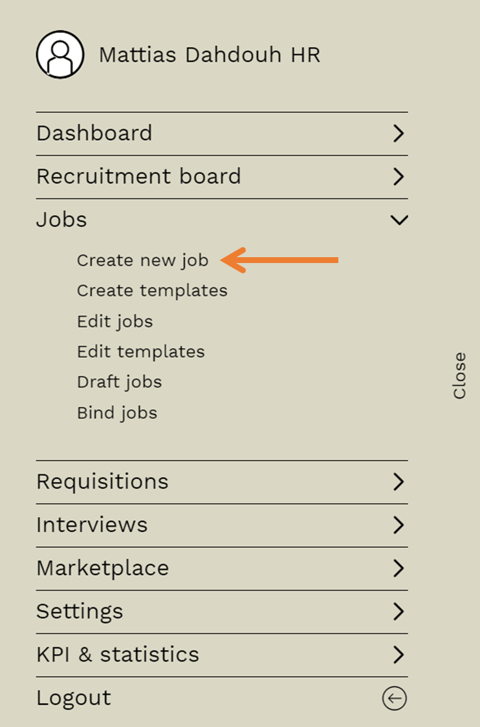
Once you are logged in to Higher, tap Overview > Jobs > Create new job. The menu can be found on the far left of the page.
Step 2
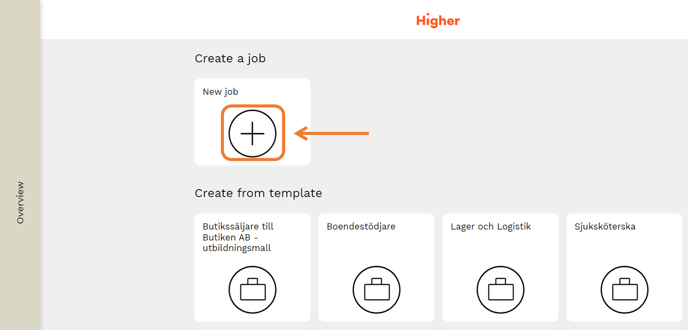
In this step, select Create new job > New job
Step 3
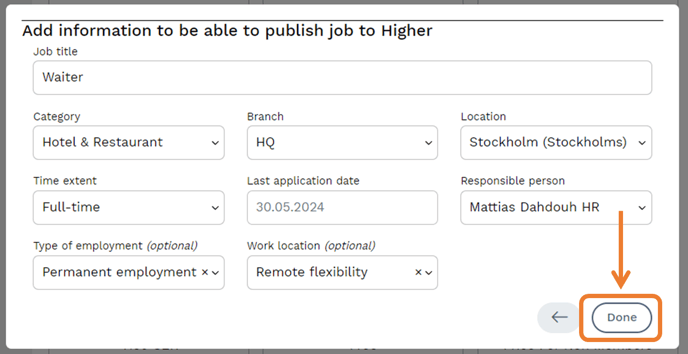
Now you will enter some mandatory information that is unique per job advert. This includes
- Job title - what is the role candidates are applying for? Remember that it should be recognized so that people can easily search for the title and understand what it is.
- Category - choose the category that best fits the job title. In this example, "Waiter" fits into Hotel & Restaurant.
- Branch - which branch does the job advert belong to? Click here to learn more about branches.
- Location - where will the job be located?
- Time extent - is it Full-time or Part-time?
- Last application date - you can choose up to 3 months in advance.
- Responsible person - who is responsible for the advert? This also determines who gets the job visible in their dashboard.
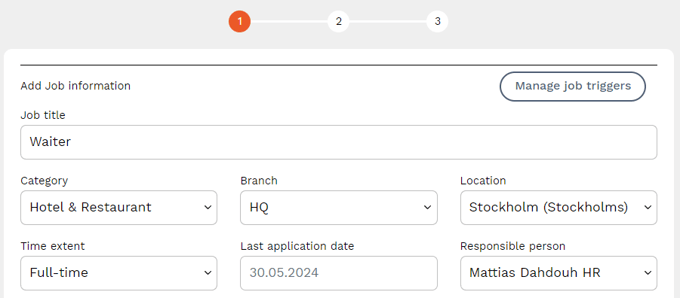
The above parameters are mandatory to select.
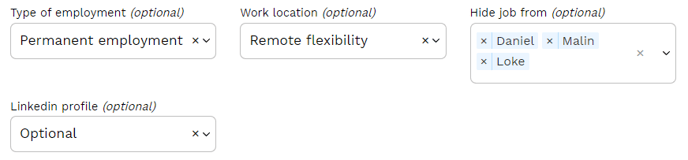
Below options are optional to include.
- Type of employment - is it project employment, trainee, internship, permanent etc.
Workplace - is it remote, hybrid, in office etc. - Hide job from - you can choose to hide the job advert from one or more other users within Higher.
- Linkedin profile - should the candidate be given the option to leave a Linkedin profile? If yes, should it be mandatory or optional? If you have this option, we recommend to always make it optional as not everyone has a Linkedin.
Other settings that can be set
- Save job as template - you can save the job advert as a template.
- Show contact details in advert - this shows the responsible person's name and email address. Keep in mind that this can create more work as candidates choose to email their application instead of doing it via the tool.
- Email notifications for new applications - tick this if you want to receive email notifications for this advert for new applications.
- Set up anonymous application flow - click here to read more about what this means
- Select language - This changes the language of pre-written text such as reminder SMS, thank you message, etc. However, any text you have entered yourself will not be translated.

When you are done with your settings, press Next 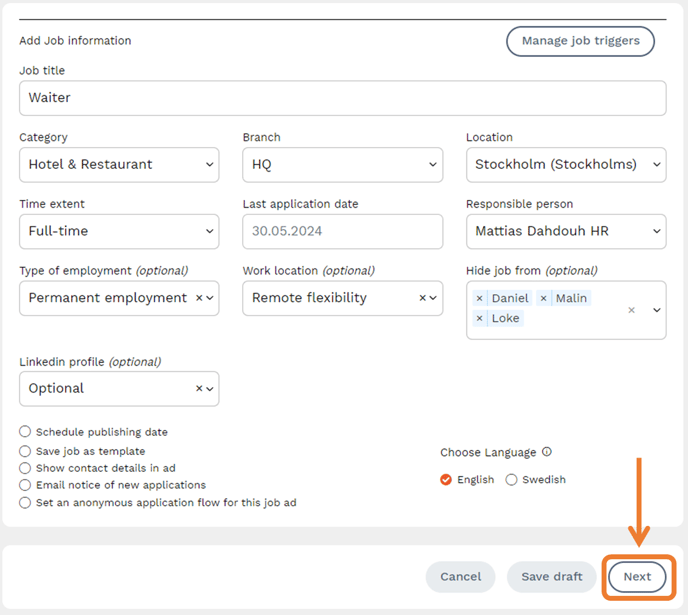
Step 4
In this step, you will be asked to design the advert with text content, instructions and media.
Upload image/video
Upload an image or video, this step is mandatory. You can choose to upload a file, record directly in the tool or select from the library. The library is something that is built up over time with your own material you upload.
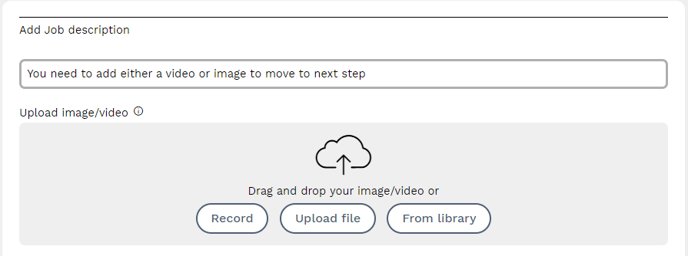
If you choose to upload a film, you will also be given the option to choose a thumbnail for it. 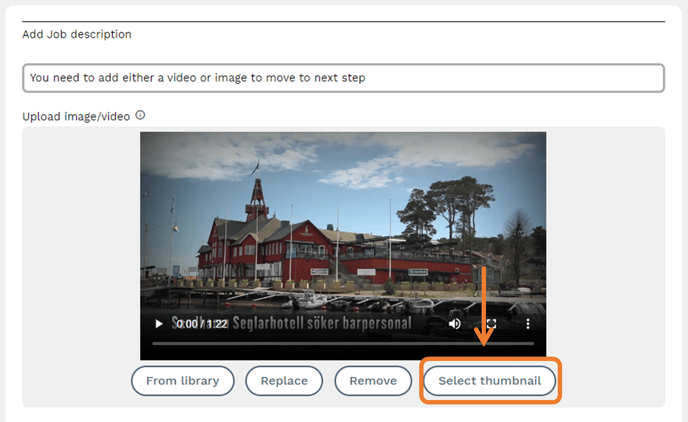
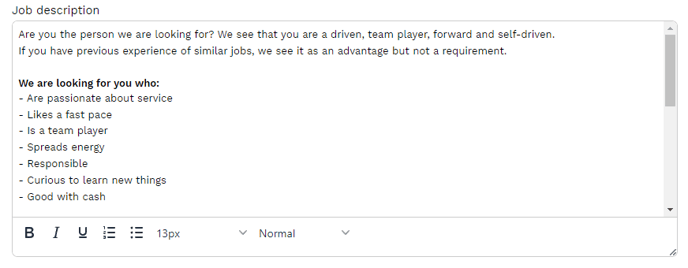
Job description
Under job description, you fill in information about the service. E.g. requirements you set, what you offer the candidate, what the job entails, etc.
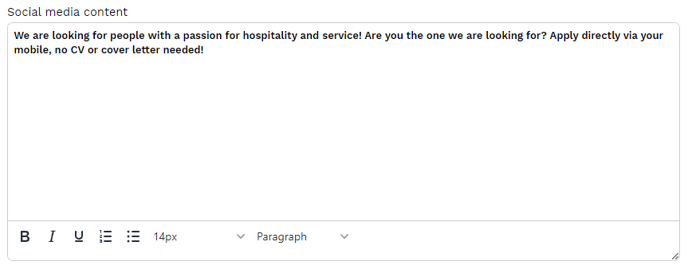
Social media content
Social media content should be a concise but selling summary of the advert description. This text is the first thing the candidate sees when they scroll through their feed and you want to entice the right candidate to click through to apply. If you choose to buy social media campaigns through Higher, this is the text that will appear in the sponsored posts.
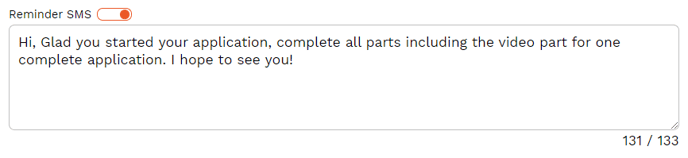
Reminder SMS
Reminder SMS give candidates the chance to resume their application if they have not completed it. You decide what the text should say.
Good to know about the SMS
- Sent to the candidate's mobile phone number 1h after an incomplete application.
- Cannot be replied to.
- Sent with your company name as the sender.
- Includes a link to the candidate's unique application.
- Costs 0:55 SEK each (or as per agreement).
- Press the orange button to deactivate SMS reminders for selected jobs.
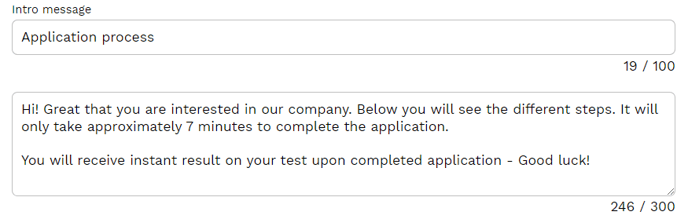
Intro message
Intro message describes the application process where Higher lists the modules (skills, personality test and video questions) you choose to include. Here you can specify additional processes and preferences you have, to describe the application process.
 Thank you message
The 'Thank you' message should be seen as a confirmation that the application has been submitted. It is the last thing the candidate sees after finalizing the application. Depending on the processes you have in place for your job adverts, it may look different for each job.
When you are done, press Next.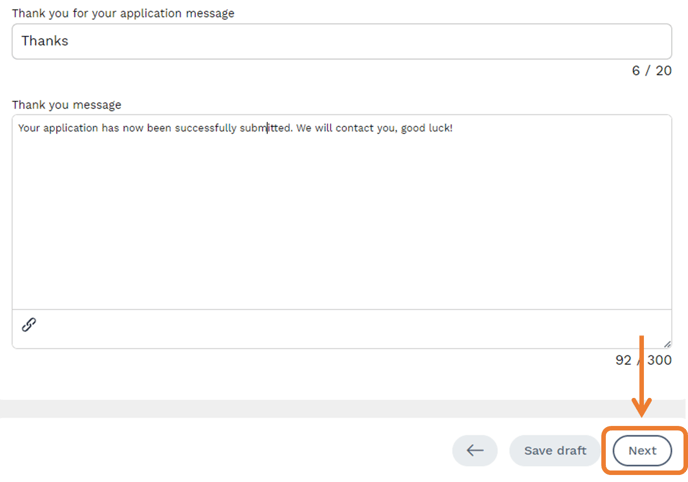
Step 5
At this stage of the Higher application process, candidates are tasked with answering questions aimed at evaluating their competence and assessing their potential for employment (Skills).
On the right you will find the menu of which modules Higher offers.
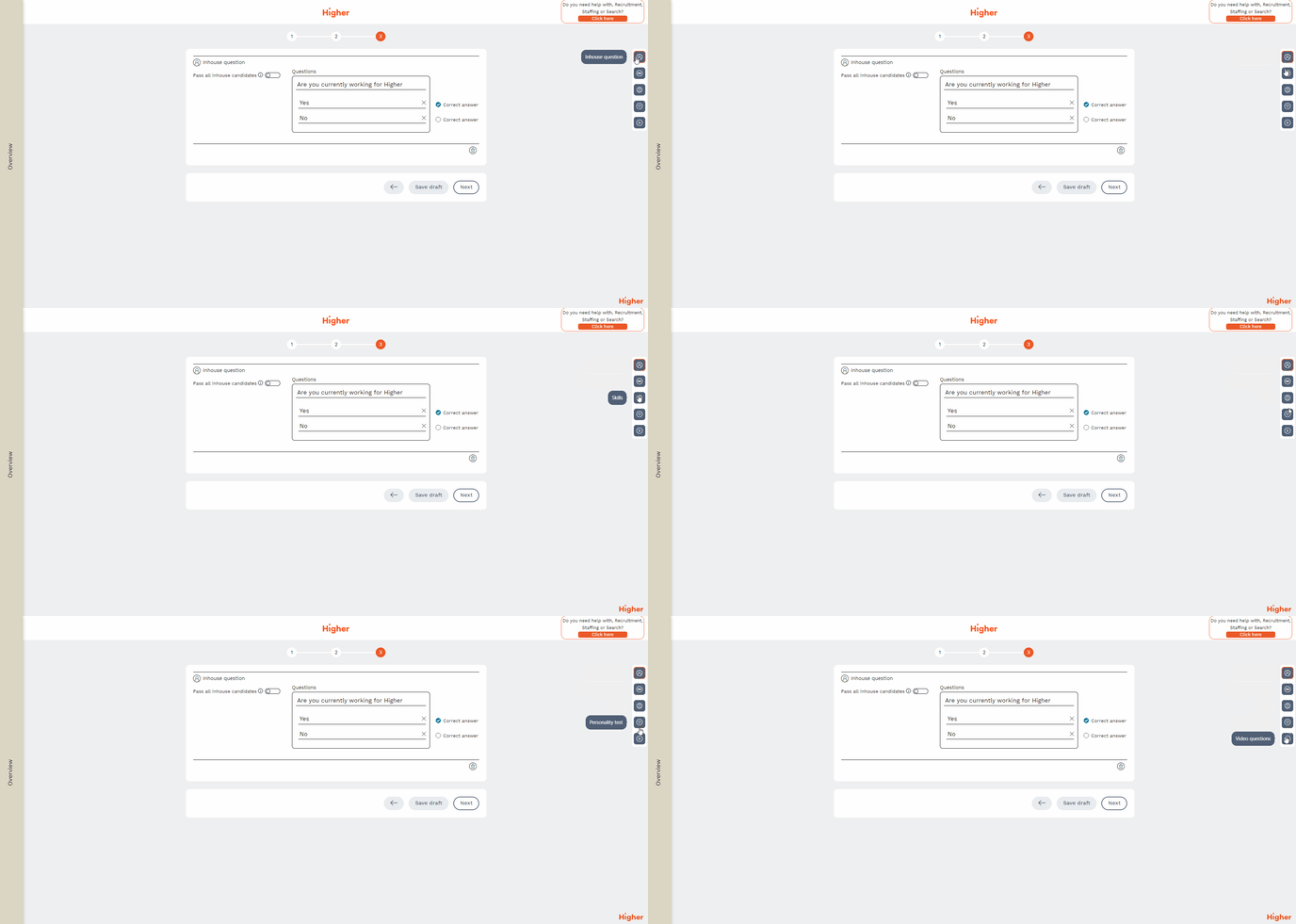
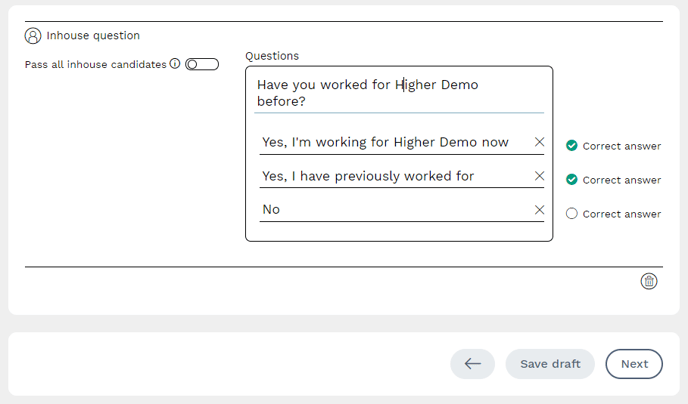
The Inhouse question (click here for more info) screens internal applications and can be used to see who has previous experience working for you.
Knockout questions (click here for more info) helps you to screen those candidates who do not fulfill the basic requirements to work for you. In this example, the job requires by law that you are over 18 years old to work. You can have up to 3 knock out questions. You can see how many candidates didn't pass the knock out questions under KPIs & Statistics (click here for more info). Knock-out questions help both you and the candidate save time, the candidate does not apply for a job that they cannot get and you do not have to handle the application unnecessarily.
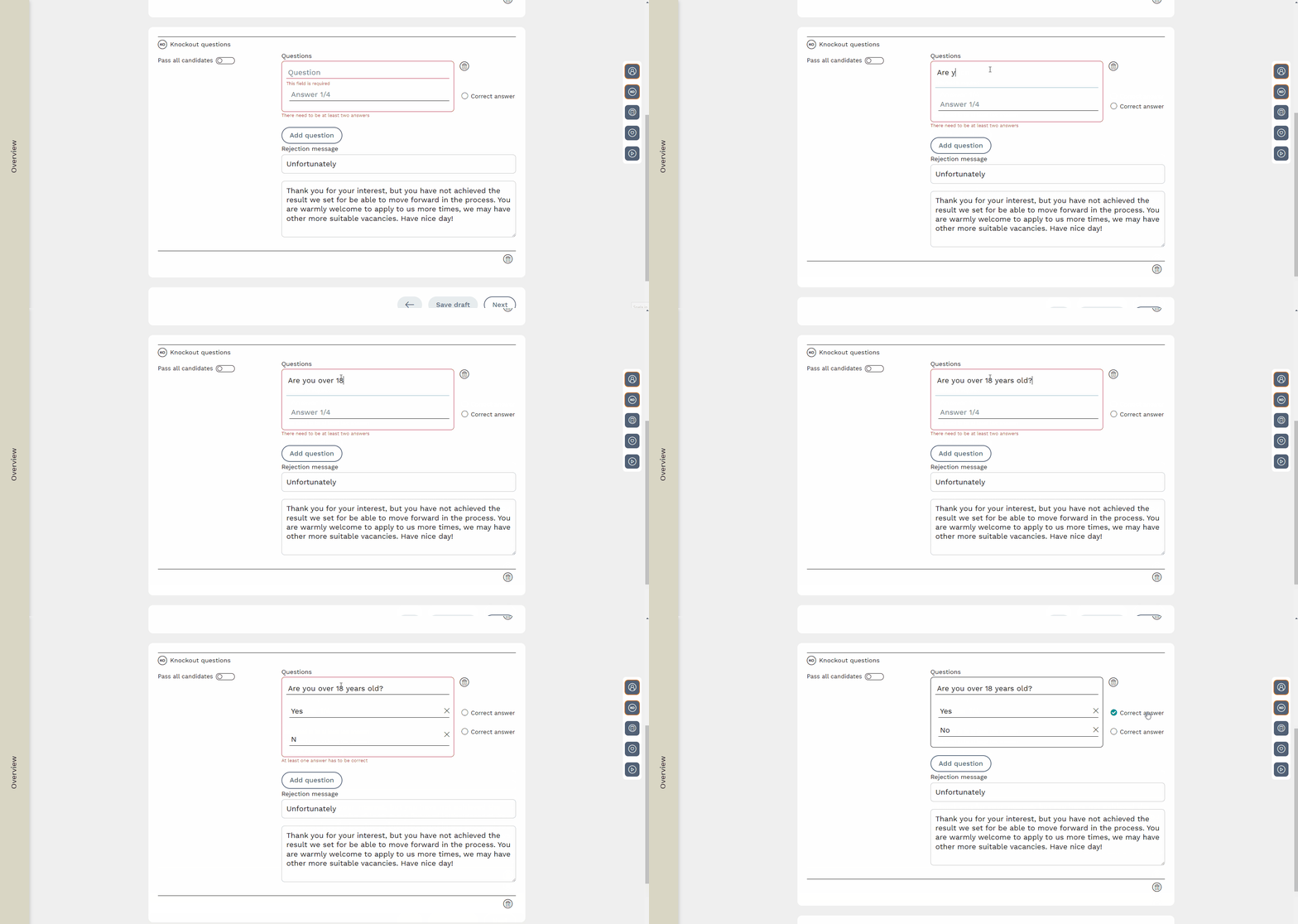
💡 To add a new line/answer option, press the Enter key.
Free text questions
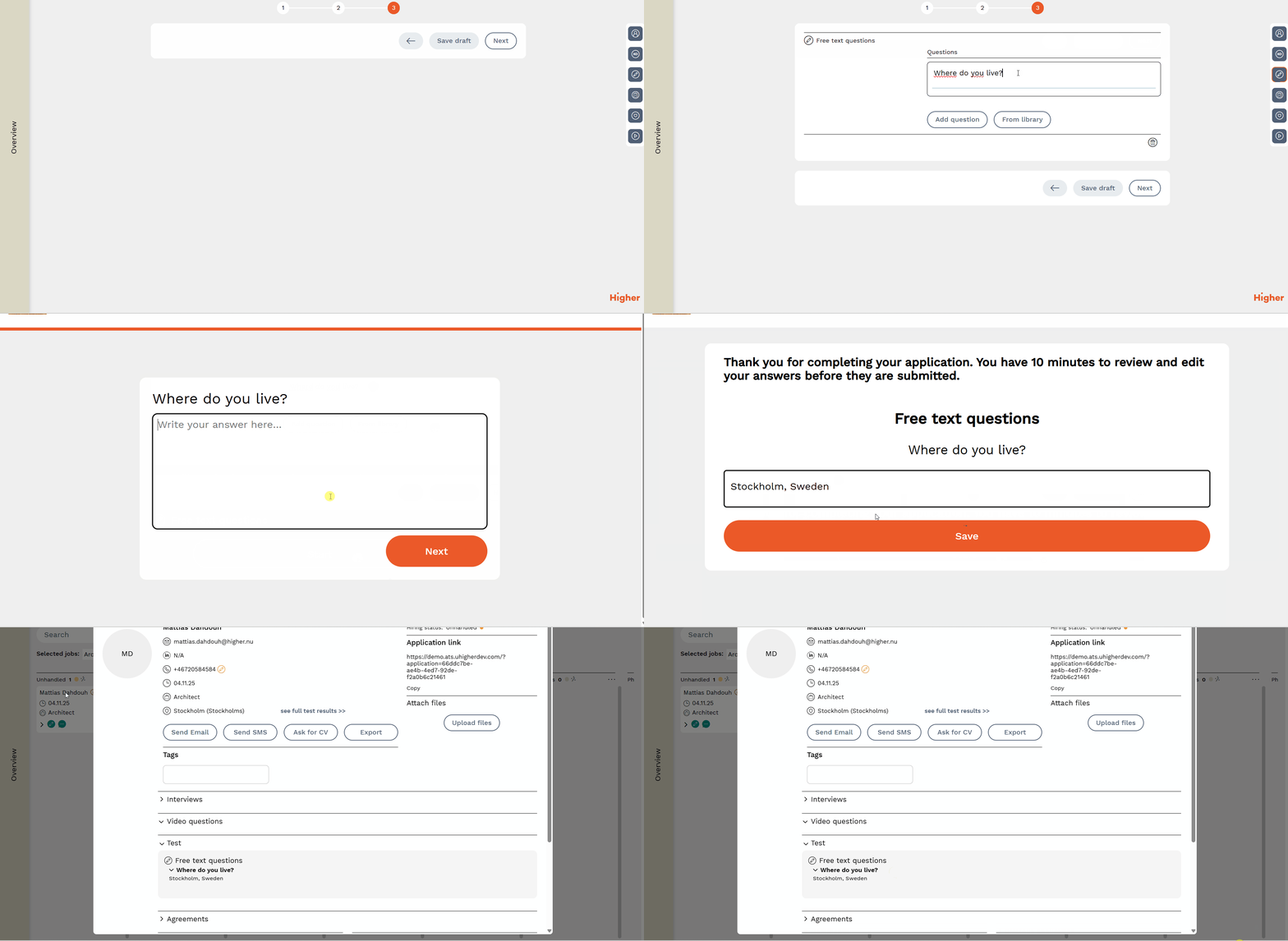
Free text questions are a perfect complement to skills questions, as they allow you to ask open questions where the candidate can elaborate on their answers in their own words. While skills questions help you screen candidates based on scores, free text questions are used to gather information that isn’t suitable for scoring, such as location, previous education or workplaces. These questions do not affect the candidate’s final score but serve as a qualitative complement to the skills questions.
Add the module by clicking the pencil icon.
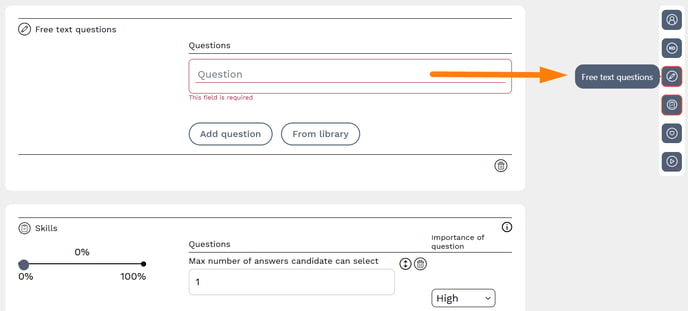
Add a question by clicking “Add question.” All created questions are saved in the library. By selecting “From library,” you can reuse free text questions from previous ads or templates.
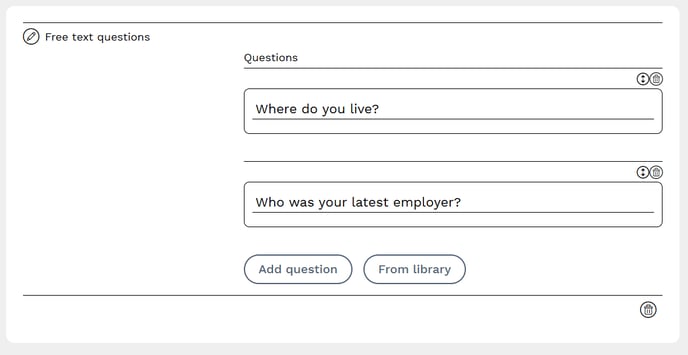
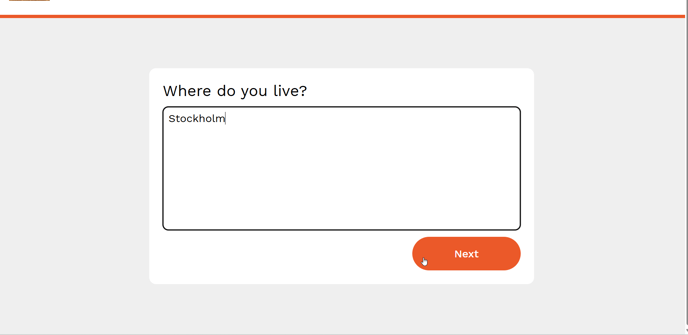
Candidates respond in free text (maximum 2000 characters per answer).
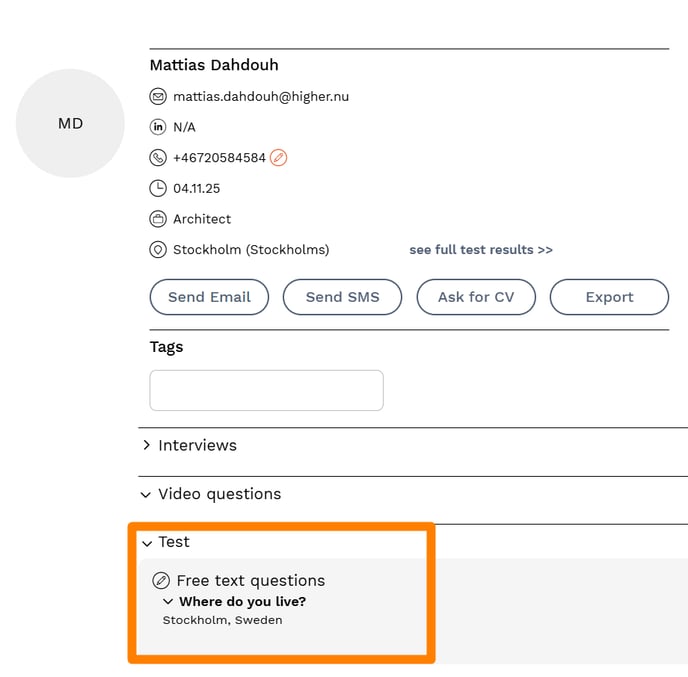
The responses are then collected on the candidate card together with the rest of the test results.
The GIF below shows the entire process, from adding a free text question, to how the candidate answers it, and finally where you can find the collected responses.
Skills (click here for more info) are questions that correspond to what you are looking for in a resume. Here you can ask situational questions, pure competency-based questions, when the candidate is available to start etc. You can ask up to 30 skill questions in a job advert and 40 in a unsolicited application.
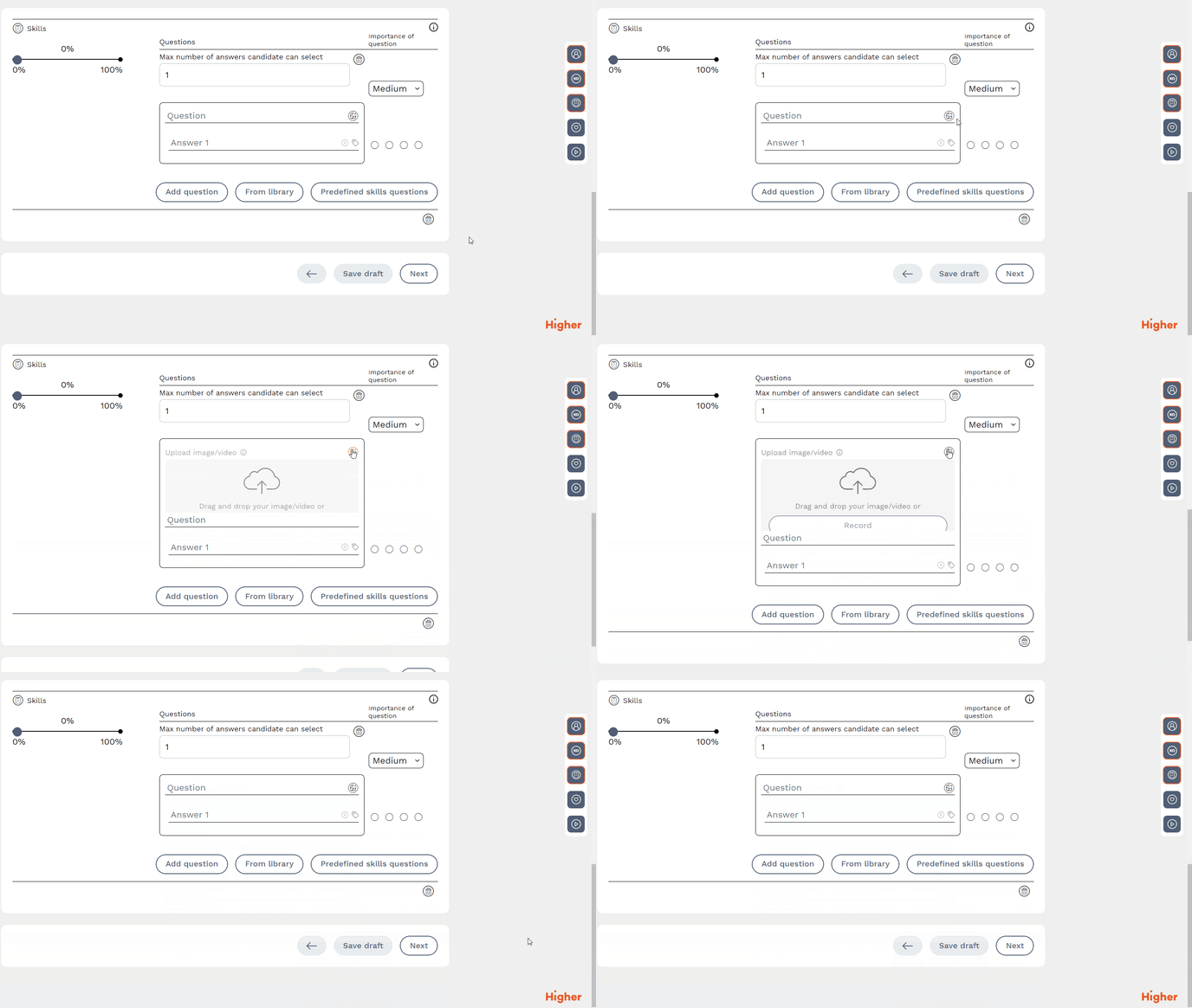
⭐You can ask the question using image or video.
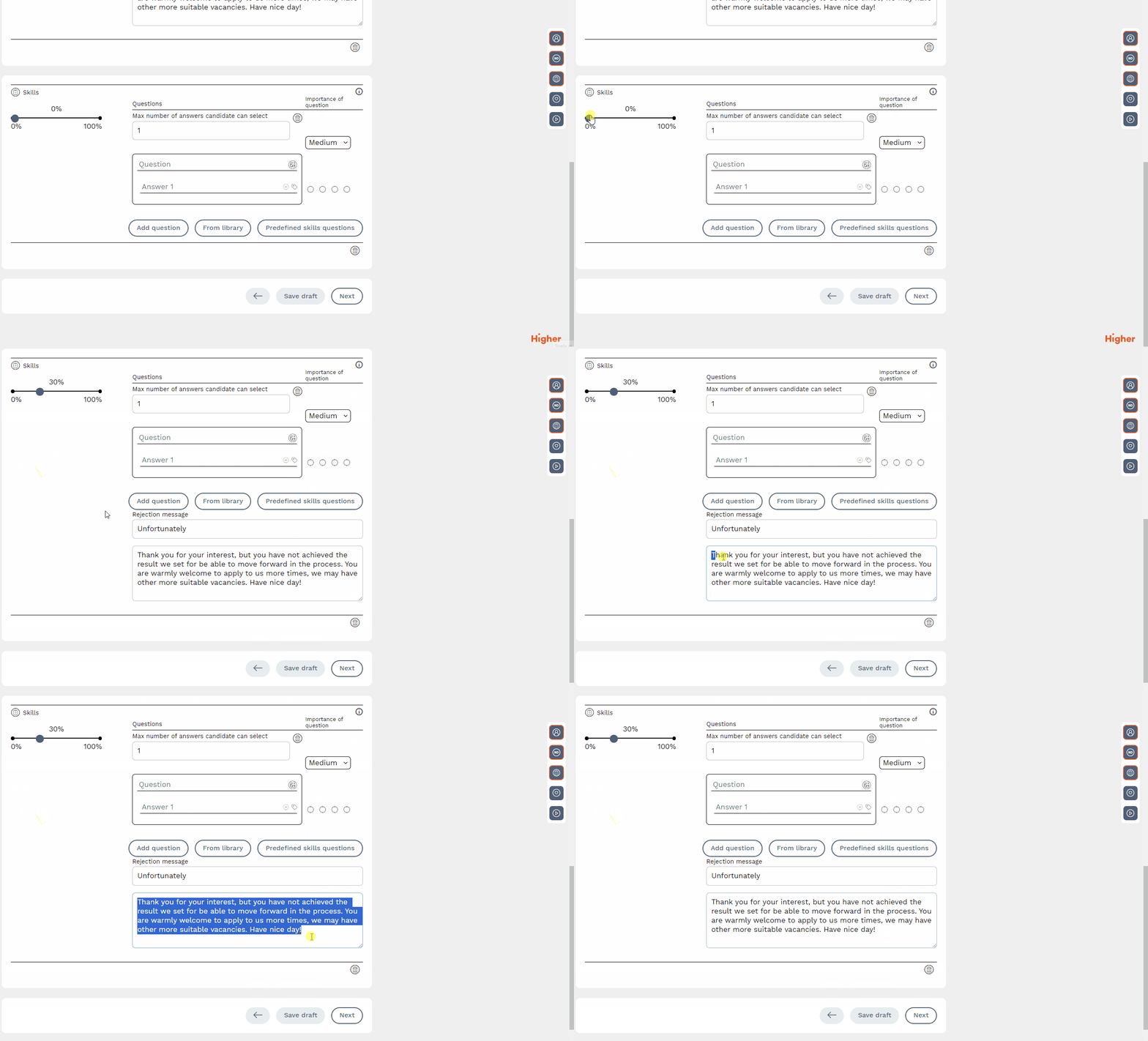
⭐Set the threshold in the advert, all candidates who score below the specified threshold will then be rejected in the system with information that they did not meet your requirements to proceed.
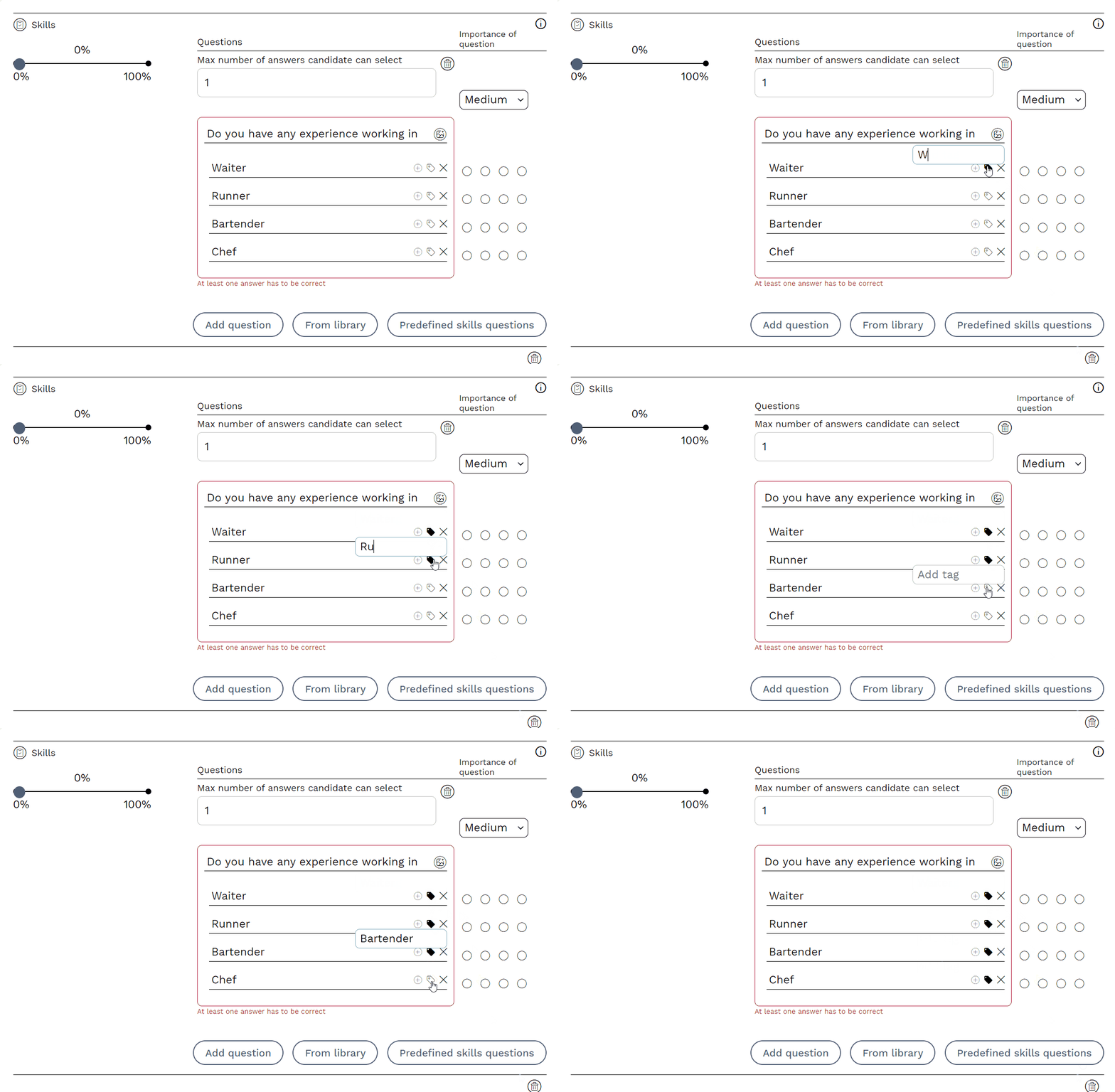
⭐Tag answer options which allows you to search and filter for those candidates who selected a specific answer option.
⭐You need to choose desirability for each answer. Hover over "Importance of questions" to know what the scoring means.
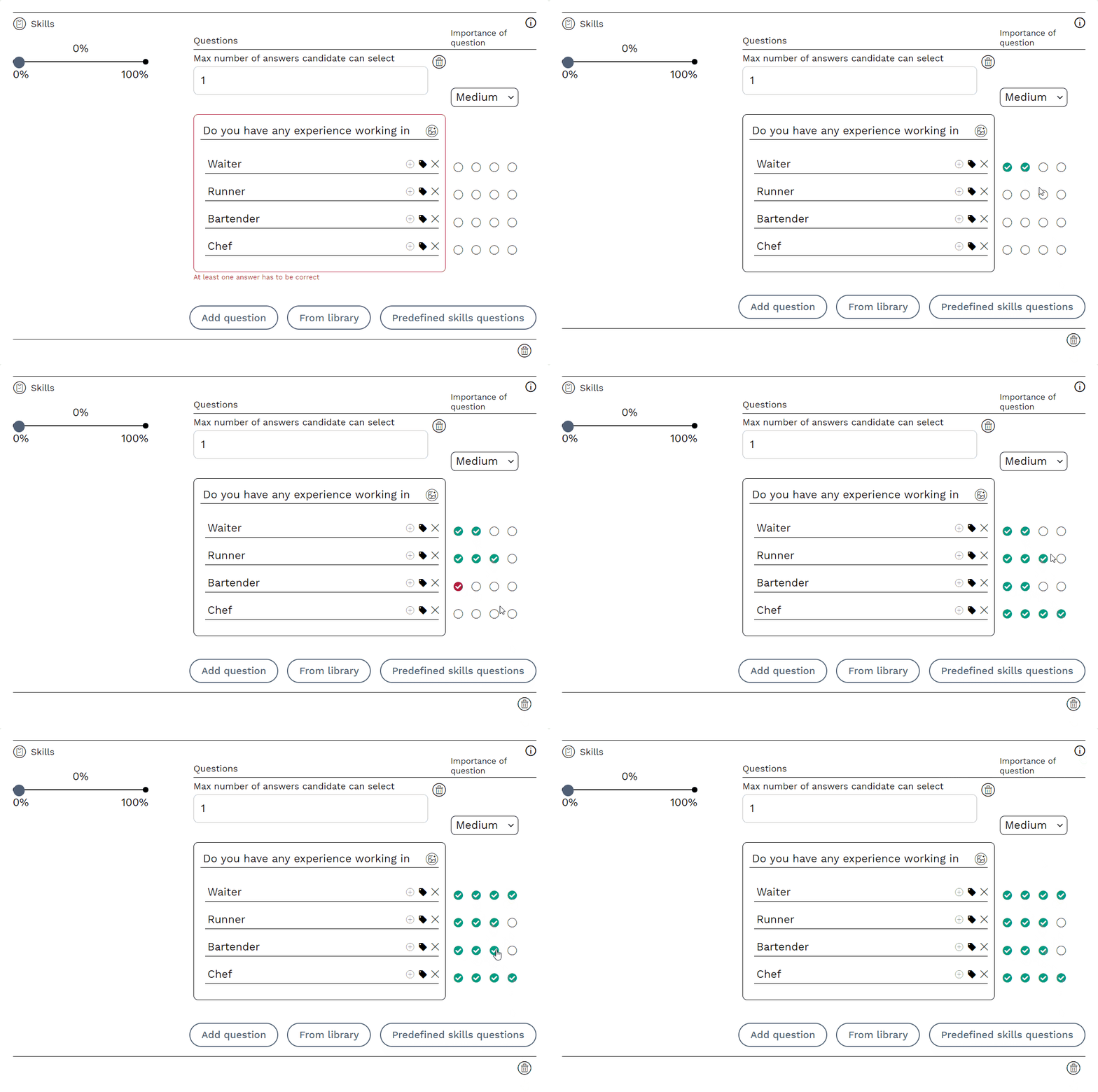
⚠️ It's important that at least one answer is Most desirable (4 green dots) for the candidate to get 100% correct on a question.
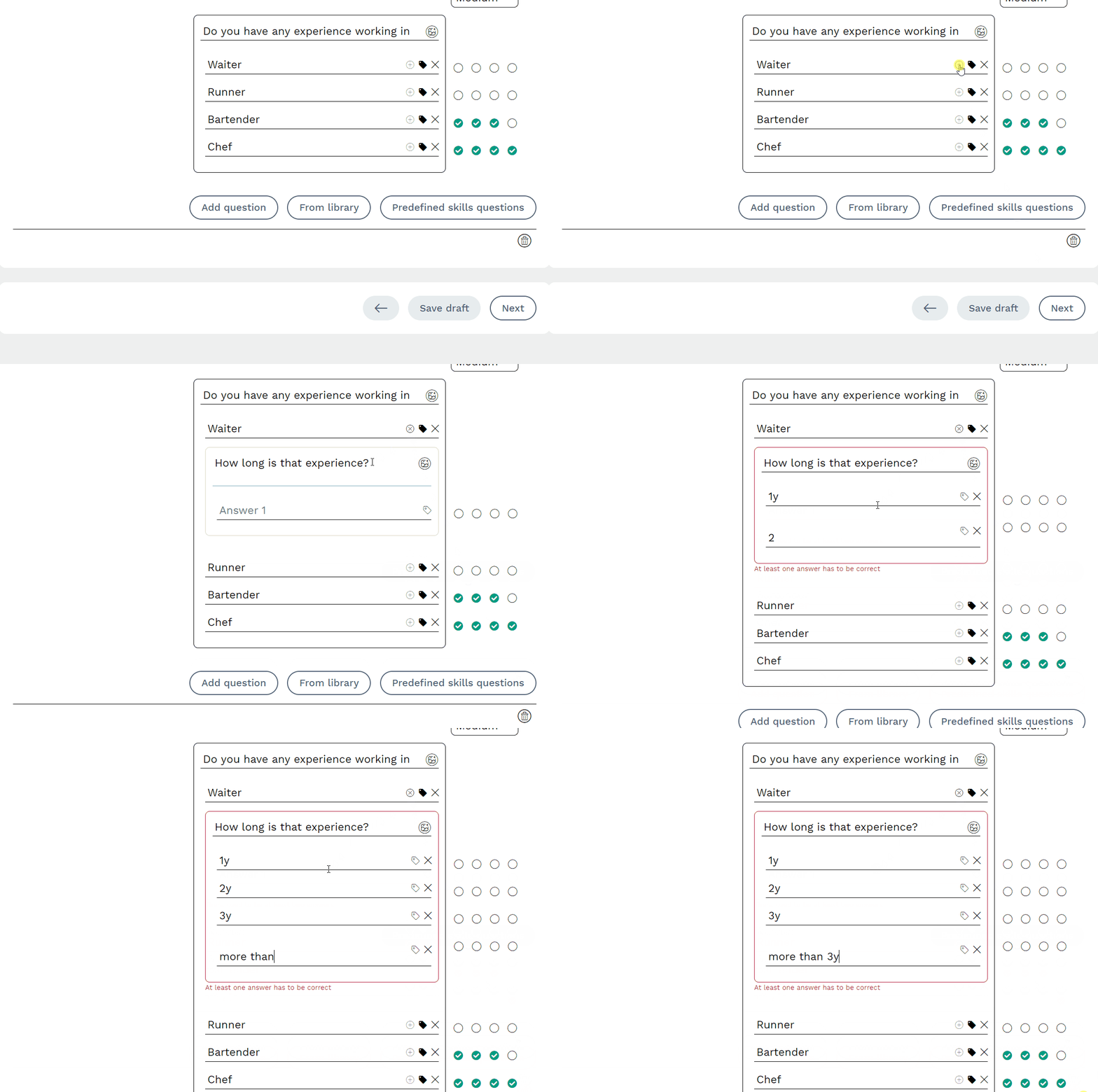
⭐You can ask follow-up questions based on which answer option the candidate chooses. A typical example of this could be "Do you have experience working with X?" whereupon a natural follow-up question could be "How long is that experience?".
⭐You can have multiple answer options and determine the maximum number of answers the candidate can choose. A typical example of this would be to allow the candidate to choose which department or location they want to work in.
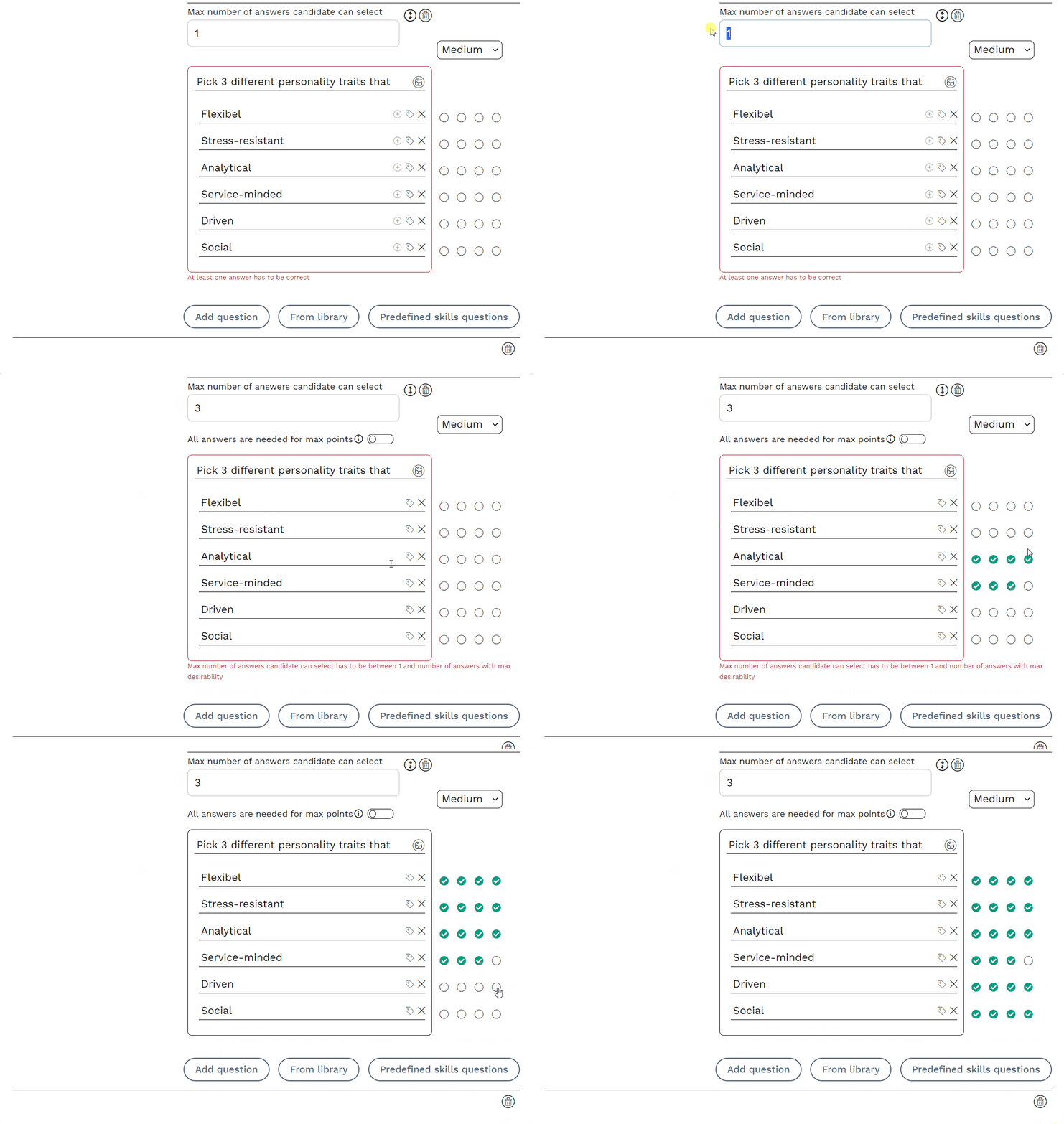
⚠️ Keep in mind that the number of desired answers must be equal to the maximum number of answers the candidate can choose.
Personality test
The personality test (read more here) measures work motivation and self-confidence. The test consists of about 30 statements where the candidate ranks the options from
1 (strongly disagree) to 5 (strongly agree).
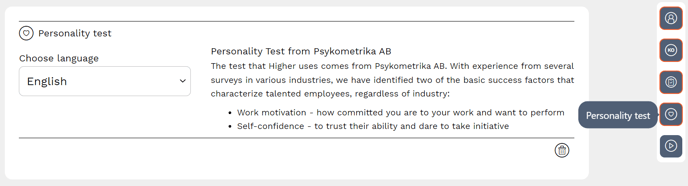
⚠️ Remember to choose the language of the test in order to proceed.
Video questions
This module should be seen as the equivalent of a cover letter, not everyone will submit it but those who do, you get to know them a bit more.
You ask the question in text format and the candidate will answer the question with video. We always encourage you as an employer to also upload a video greeting to the candidate for the sake of the experience. This makes the candidate more inclined to also record their answers
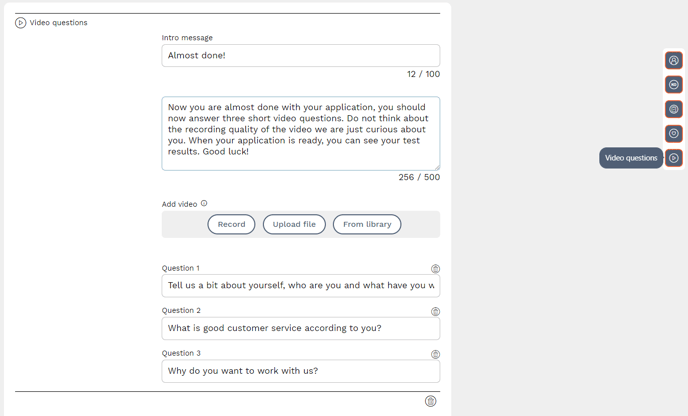
⚠️ The video module is optional, if the candidate chooses not to answer the video questions, the application will be submitted anyway but classified as "incomplete". See this module as a complement to skills and is meritorious. It helps you get a first personal impression but should not be decisive for moving forward in the process.
When you have finished including the modules you want in the job advert, go to the last step by pressing "Next".
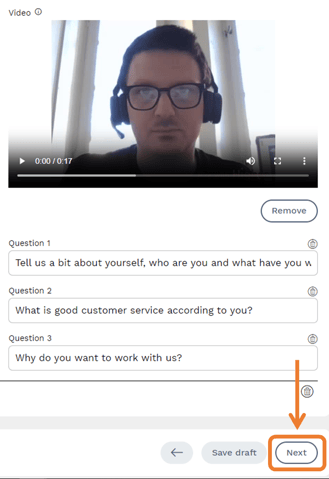
Step 6
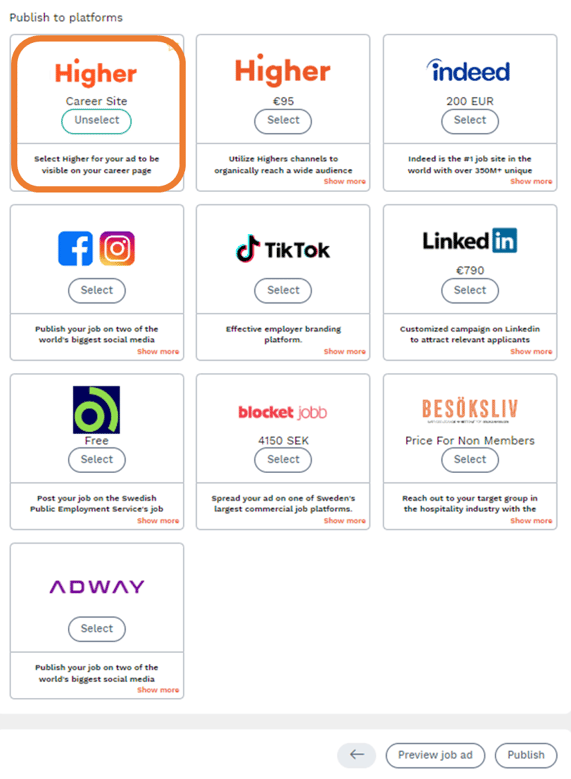
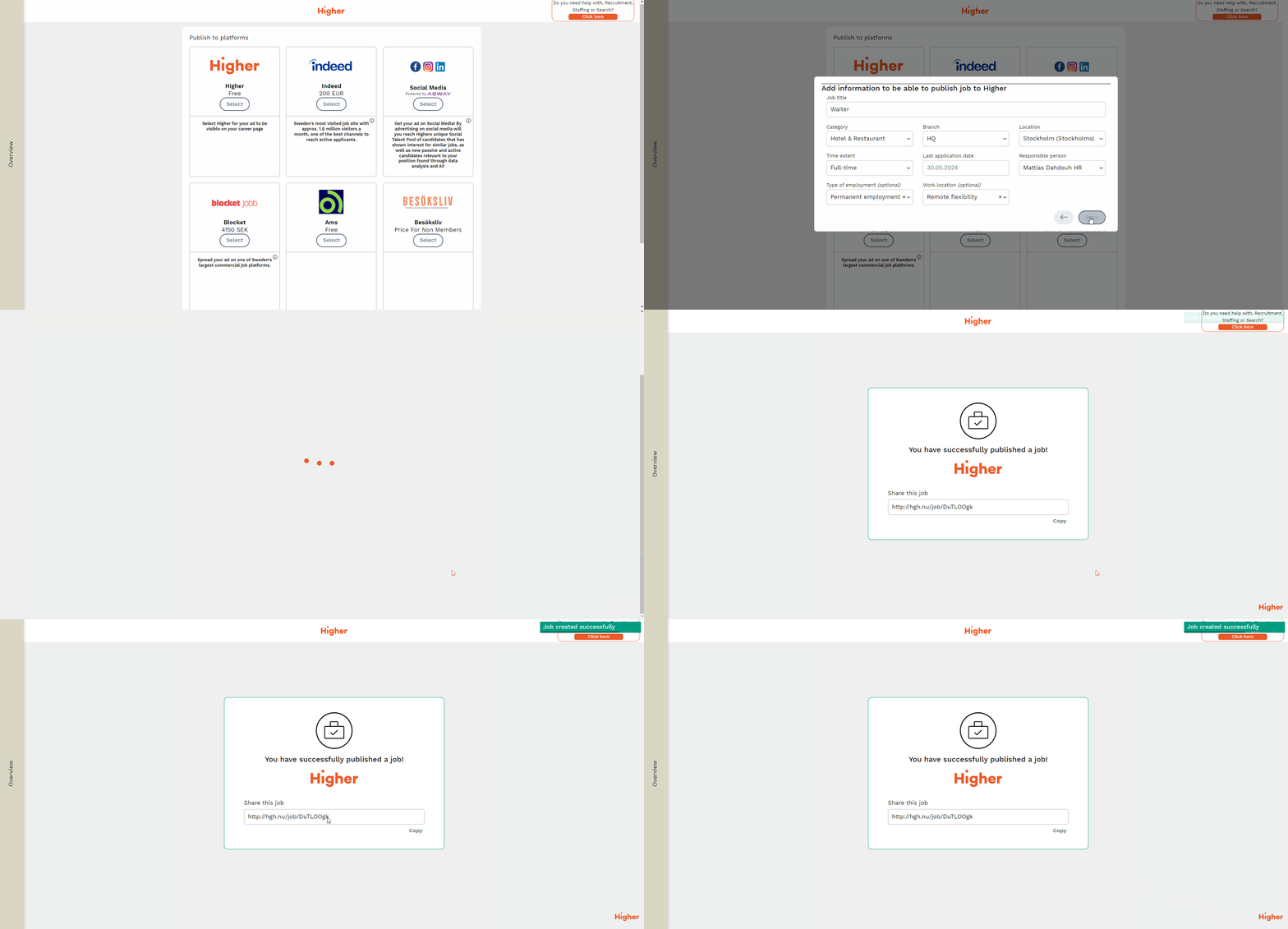
Now it's time to publish your advert on any platform. You should always choose Career Site (it's free) as this option will publish your job ad on the career page. Note that this option has your company logo displayed instead of Higher in this example.
When you select a platform, you will need to fill in/confirm the details. Apply it by pressing "Done".
Once you have selected your platforms, you can publish your job advert to make it appear on your career page.
Step 7
Happy with how the advert turned out? Great! Then you can save it as a template, which will save you a lot of time for your next recruitment.
Menu > Jobs > Edit advert > Edit any advert
- Go to the bottom of the page
- Select "Copy job"
- Change the title as desired
- Tick "Save job as template"
- Select the category
- Click through all the steps and finish with "Publish".
Now you have created a template from your job advert. The next time you publish a job, you can create a job based on your new template.