![logga.png]](https://forum.higher.nu/hs-fs/hubfs/logga.png?height=40&name=logga.png)
Table of contents
Add the module to your job ad/template
Interpreting KPI's and statistics
Overview
To ask candidates to submit documents during the application process, you can use the “Request documents” module. This allows you to easily request file attachments directly in the application flow.
We recommend combining this module with other modules such as knockout questions, skills, video questions, free‑text questions, and personality tests to help you save time when screening incoming applications. We further recommend placing this module AFTER skills but BEFORE the video questions.
Candidates who choose to skip a requested document or ask for an upload link are clearly flagged on the candidate card and are also tracked under KPIs and statistics. More on this further down.
Because many candidates apply via mobile and do not always have all documents available at the time of application, this module is optional for the candidate. More on this further down.
Add the module to your job ad/template
1. Click the paperclip to activate the module in your job ad/template.
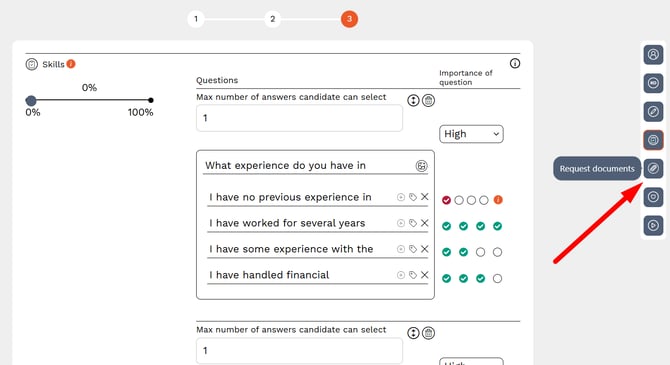
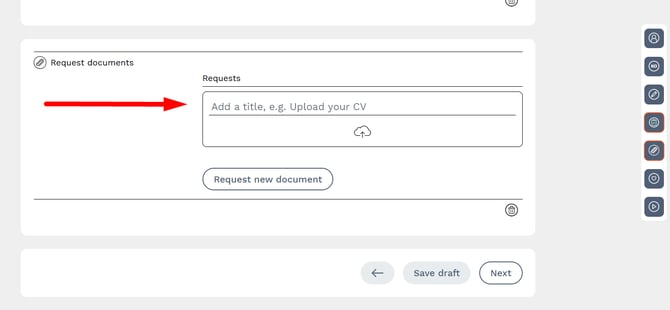
2. Once the module is activated, you need to enter a title for your request. As a recruiter, you decide which documents you want to ask for – for example CV, cover letter, certificates, transcripts, or portfolio.
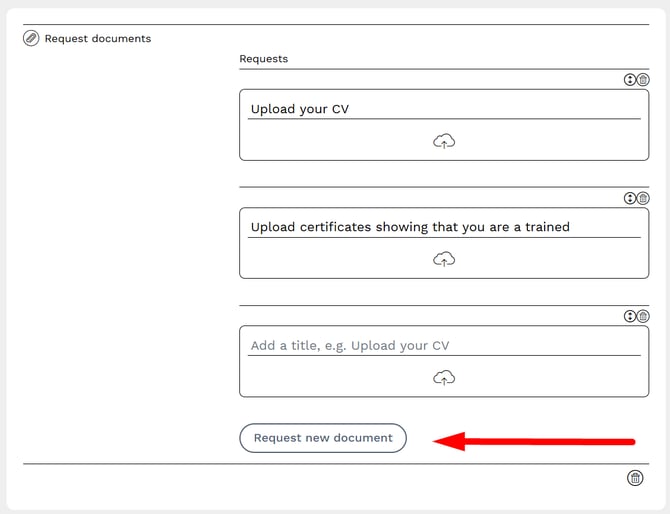
3. If you want to request several documents in the same application, we strongly recommend adding a separate request for each document. This reduces the risk of losing the candidate if a document is missing at the time of application. Click “Request new document” to add another request.
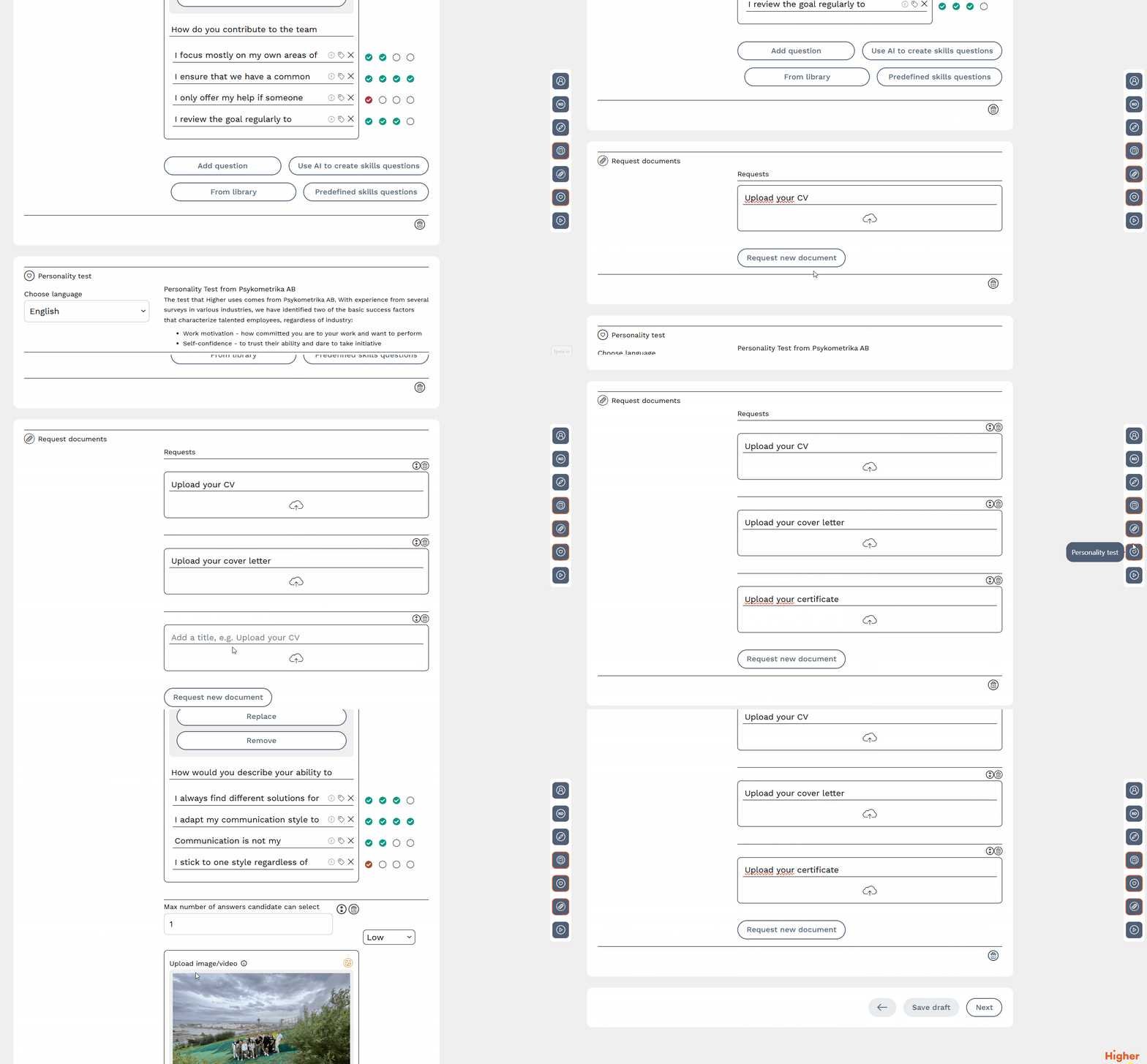
Here you can see an overview of how to add the module, name the titles, and finally change the order in which it appears compared to other modules in the ad.
Candidate journey
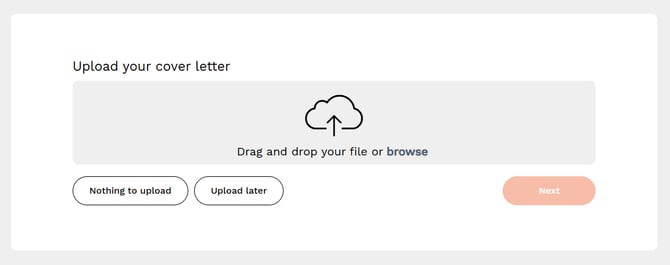
When the candidate submits their application and is asked to upload the requested documents, they are given three options:
- Upload (browse)
- Nothing to upload
- Upload later
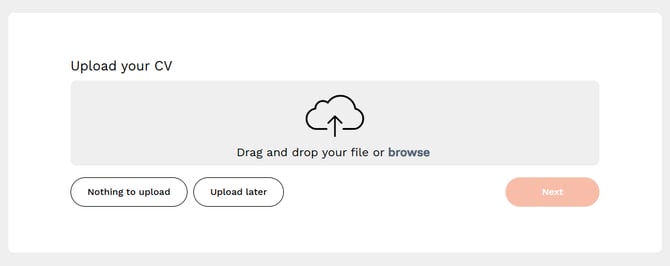
Upload
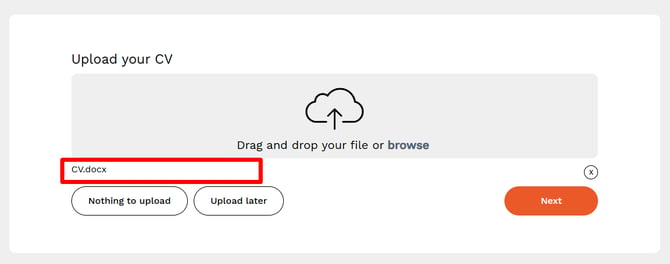
The candidate clicks “Browse” to upload their file and then clicks “Next” to move on to the next step.
Nothing to upload
If the candidate selects “Nothing to upload”, they move directly to the next step.
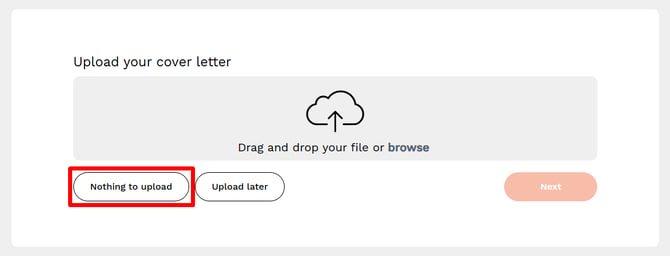
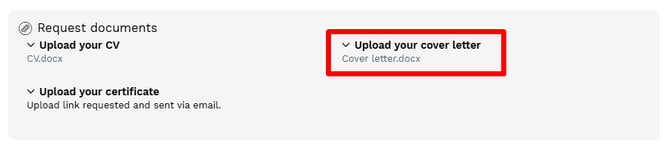
This choice is logged on the candidate card so you can clearly see that the candidate is missing the requested document.

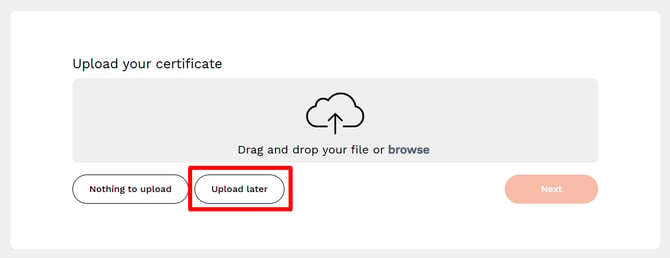
Upload later
If the candidate selects “Upload later”, the candidate’s unique application link is automatically sent to the specified email address and they move directly to the next step.
The message clearly states which email address the link is sent to and prompts the candidate to check their spam folder.
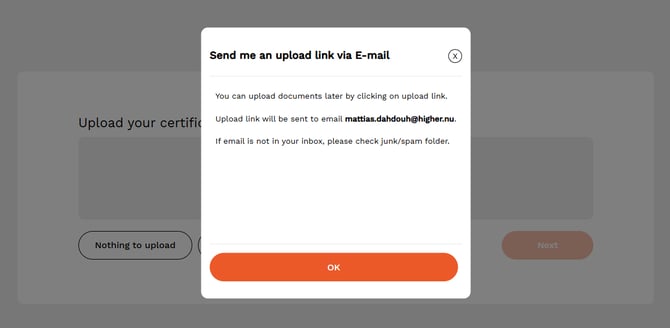
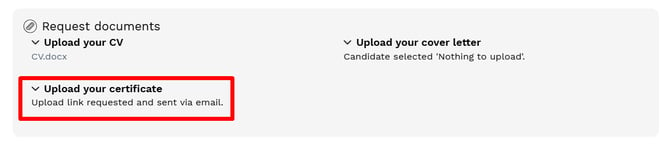
This choice is logged on the candidate card so you can clearly see that the candidate has requested an upload link to add the document later.
If the candidate discovers that the link was sent to the wrong email address, you can ask them to contact support@higher.nu and provide the incorrect address, and we will help completely delete the application.
Completion of the application
If the candidate does not have any document to upload but completes all other parts of the application, a summary is shown explaining that the application is not yet fully complete, as they are expected to upload the requested documents.
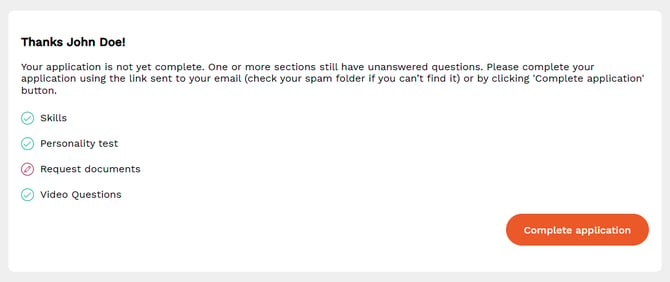
When the candidate clicks “Complete application”, they are taken back to the first incomplete step, where they can upload the missing documents, while already completed parts of the application are skipped.
The candidate card is automatically updated as the candidate uploads the requested documents. In the example, you can see that the candidate has uploaded 2 out of 3 files.
Before:
After:
📈 Interpreting KPIs
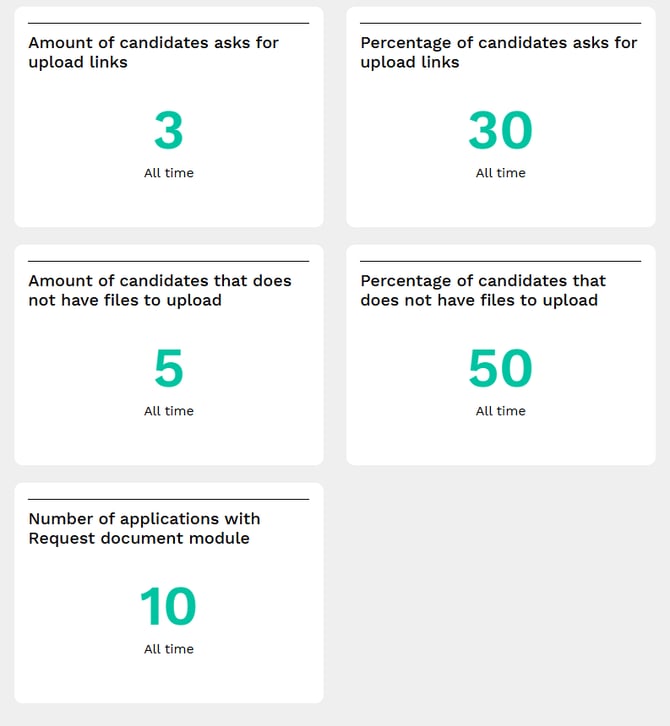
To provide an accurate overview of the candidate flow, our statistics are based on unique events per candidate and job application. This means we measure behavioral patterns rather than individual clicks.
Unique Candidates
The statistics count individuals, not the total number of interactions.
-
Example: If a candidate is missing 5 documents and clicks "Nothing to upload" for all of them, this is still recorded as only one (1) unique event in the "Nothing to upload" category. This prevents the data from being skewed and ensures the statistics accurately reflect the number of applicants affected, rather than the number of missing files.
Logic for Link Requests
The KPI for "Requested Upload Link" shows how many candidates, at some stage of their application, required assistance to supplement their files via an external link. Here, too, each candidate is counted only once, regardless of how many times they generate or click the link.
Persistence
Once a candidate has marked a document as missing, this is saved in the statistics for that specific position.
-
Why isn't it reset? If the candidate later chooses to supplement their application with a file, the "Nothing to upload" marker remains. The purpose is for you to see where friction occurs in the process, specifically, how many candidates initially did not have their documents ready. This provides valuable insight into whether your application requirements are too demanding or if instructions need further clarification.
Scope per Recruitment
The data is tied to the specific job opening. A candidate's actions in one process do not affect the statistics for another recruitment, even if it is the same person applying.
💡If you see a high number for "Nothing to upload" and/or "Upload link requested" but still receive complete applications in the end, it is a sign that candidates are motivated to complete the process even if they lacked the correct documentation at the initial point of contact.